Sharp MX-C300PL Especificações Página 28: SAVING FREQUENTLY USED PRINT SETTINGS
 1
 2
 3
 4
 5
 6
 7
 8
 9
 10
 11
 12
 13
 14
 15
 16
 17
 18
 19
 20
 21
 22
 23
 24
 25
 26
 27
 28
 29
 30
 31
 32
 33
 34
 35
 36
 37
 38
 39
 40
 41
 42
 43
 44
 45
 46
 47
 48
 49
 50
 51
 52
 53
 54
 55
 56
 57
 58
 59
 60
 61
 62
 63
 64
 65
 66
 67
 68
 69
 70
 71
 72
 73
 74
 75
 76
 77
 78
 79
 80
 81
 82
 83
 84
 85
 86
 87
 88
 89
 90
 91
 92
 93
 94
 95
 96
 97
 98
 99
 100
 101
 102
 103
 104
 105
 106
 107
 108
28
PRINTER
SAVING FREQUENTLY USED PRINT SETTINGS
Settings configured on each of the tabs at the time of printing can be saved as user settings. Saving frequently used
settings or complex colour settings under an assigned name makes it easy to select those settings the next time you
need to use them.
SAVING SETTINGS AT THE TIME OF PRINTING
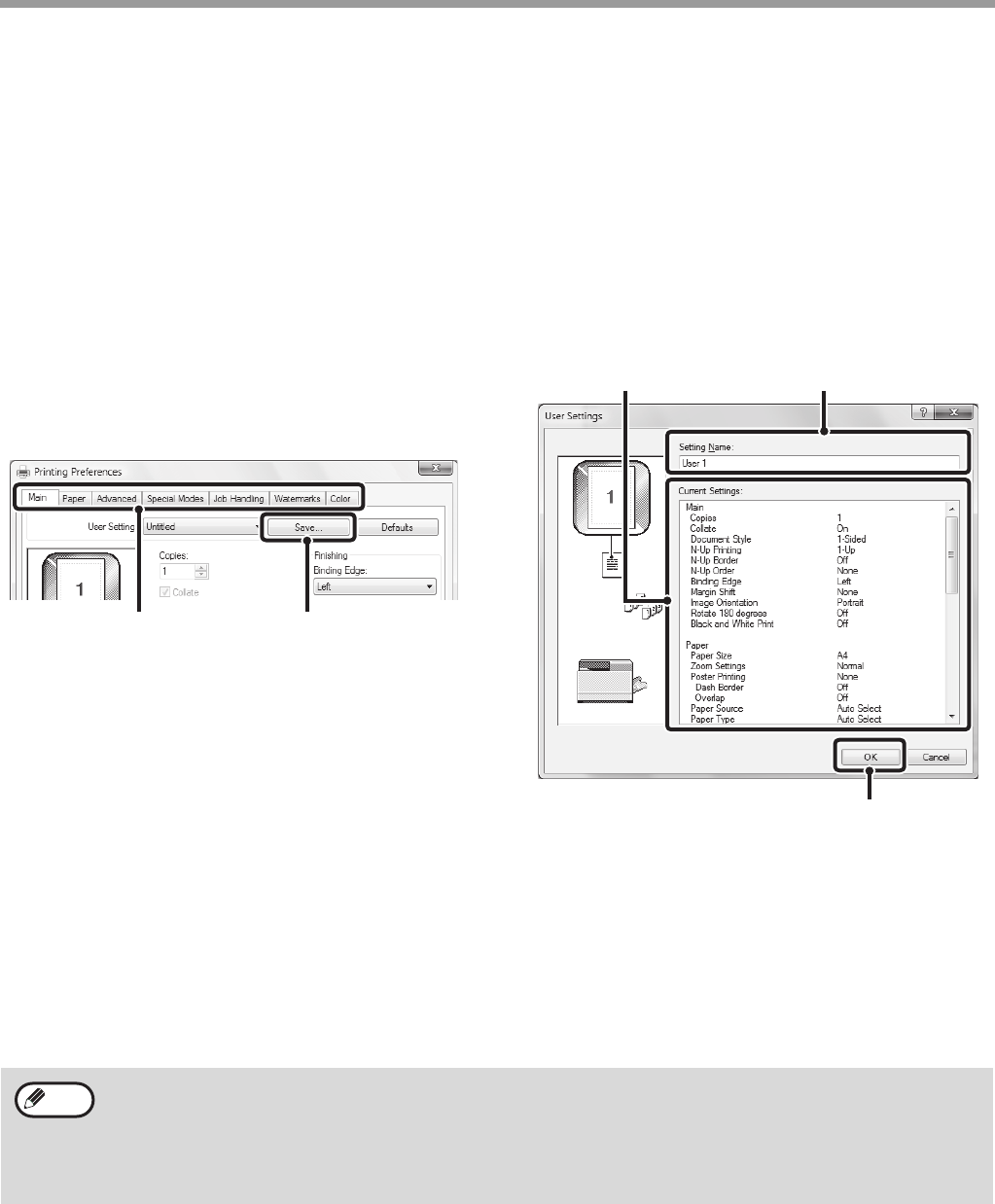
Settings can be saved from any tab of the printer driver properties window. Settings configured on each tab are
listed at the time of saving, allowing you to check the settings as you save them.
1
Open the printer driver properties
window from the print window of the
software application.
2
Save the print settings.
(1) Configure print settings on each tab.
(2) Click the [Save] button.
3
Check and save the settings.
(1) Check the displayed settings.
(2) Enter a name for the settings (maximum
of 20 characters).
(3) Click the [OK] button.
4
Click the [OK] button.
5
Start printing.
(2)
(1)
(3)
(2)
(1)
• Up to 30 sets of user settings can be saved.
• The following items cannot be saved in user settings.
• A watermark that you created
• Paper insertion settings
• Overlay file
• The user number, user name, and job name entered in the [Job Handling] tab
Note
Ficheiro PDF · ·
Perguntas sobre Sharp MX-C300PL
Ainda não há perguntas sobre este manual. Faça a primeira.
Manuais e produtos relacionados com Digitalizar e Imprimir Sharp MX-C300PL
- Digitalizar e Imprimir Sharp MX-M200D Manual do Utilizador
 (100 páginas)
- Digitalizar e Imprimir Sharp AR-4551 Especificações
 (280 páginas)
- Digitalizar e Imprimir Sharp AR-M351N Especificações
(188 páginas)
- Digitalizar e Imprimir Sharp AR-M355 Manual do Utilizador
(12 páginas)
- Digitalizar e Imprimir Sharp MX-M904 Especificações
(122 páginas)
- Digitalizar e Imprimir Sharp JX-9600 Manual do Utilizador
 (14 páginas)
- Digitalizar e Imprimir Sharp CE-140P Manual do Utilizador
 (60 páginas)
- Digitalizar e Imprimir Sharp EL-2607R Especificações

 (2 páginas)
- Digitalizar e Imprimir Sharp DP-750 Manual de Serviço
(110 páginas)
- Digitalizar e Imprimir Sharp AR-M350N/M450N Manual do Utilizador
(12 páginas)
- Digitalizar e Imprimir Sharp ER-01PU Manual de Instruções
(241 páginas)
- Digitalizar e Imprimir Sharp UX-4000M - UX 4000 B/W Laser Printer Guia do Utilizador
(194 páginas)
- Digitalizar e Imprimir Sharp AR-NB3 Manual do Utilizador
(4 páginas)
- Digitalizar e Imprimir Sharp MX-5500N Especificações
(50 páginas)
- Digitalizar e Imprimir Sharp MX-M200D Manual de Serviço
(121 páginas)
- Digitalizar e Imprimir Sharp AR-4551 Manual do Utilizador
(44 páginas)
- Digitalizar e Imprimir Sharp MX-5500N Manual do Utilizador
(6 páginas)
- Digitalizar e Imprimir Sharp AR-RB1 Especificações
(140 páginas)
- Digitalizar e Imprimir Sharp AR-M351N Manual do Utilizador
(20 páginas)
- Digitalizar e Imprimir Sharp FO-2150CM Manual de Serviço
(132 páginas)