Sharp MX-7001 Manual do Utilizador Página 158
- Página / 710
- Índice
- MARCADORES

- User's Guide 1
- TABLE OF CONTENTS 2
- (10) (11)(12) (14) (15) 6
- INTERIOR 7
- (1) (5) (6) (7)(2) (3) (4) 8
- SIDE AND BACK 9
- OPERATION PANEL 10
- ☞ [POWER SAVE] KEY (page 17) 11
- TOUCH PANEL 12
- Example 4 13
- SYSTEM BAR 14
- TURNING THE POWER ON AND OFF 16
- ENERGY SAVE FUNCTIONS 17
- [POWER SAVE] KEY 17
- USER AUTHENTICATION 18
- Select the user name 20
- Touch the [Password] key 21
- HOME SCREEN 23
- LOADING PAPER 24
- USEABLE PAPER 25
- Paper that cannot be used 26
- Non-recommended paper 26
- CHANGING THE PAPER SIZE 28
- Take out the tab paper guide 31
- Loading transparency film 32
- CAPACITY TRAY) 33
- LOADING PAPER (MX-LCX3) 34
- Set the paper size 40
- Inserting paper 41
- Inserting tab paper 41
- Inserting transparency film 41
- Loading envelopes 42
- ORIGINALS 44
- Placing a thick book 47
- PERIPHERAL DEVICES 48
- PART NAMES 49
- SUPPLIES 50
- Close the front cover 52
- PUNCH MODULE 57
- INSERTER 58
- Load paper in the inserter 60
- Alarm display 61
- SHARP OSA 62
- External authentication mode 63
- If login fails 64
- External count mode 64
- MAINTENANCE 65
- Scanning area 66
- Replace the glass cleaner 67
- PHOTOCONDUCTIVE DRUM 68
- CLEANING THE LASER UNIT 70
- Clean the laser unit 72
- Replace the cleaning tool 73
- Open the front cover (upper) 75
- REPLACING THE WASTE TONER BOX 77
- ENTERING TEXT 79
- Copier Guide 82
- AS A COPIER 87
- ☞ PAPER TRAYS (page 14) 88
- ☞ OUTPUT (page 36) 88
- COPYING SEQUENCE 90
- Start copying 92
- PAPER TRAYS 95
- BASIC PROCEDURE FOR 96
- MAKING COPIES 96
- 8½x118½x11 98
- AUTOMATIC 2-SIDED COPYING 100
- Special Modes 101
- 2-Sided Copy 101
- DOCUMENT GLASS 102
- Read-End 104
- COPY COLOR MODES 105
- Selecting 2 color copying 106
- IMAGE TYPE 107
- Adjust the exposure level 108
- Touch the [OK] key 108
- REDUCTION/ENLARGEMENT/ZOOM 109
- Set the ratio 110
- SEPARATELY (XY Zoom) 112
- ORIGINAL SIZES 113
- Enter the original size 114
- Touch the [Custom Size] key 114
- Store the original size 115
- OUTPUT MODES 119
- Punch function 121
- Place the original 122
- Touch the [Paper Select] key 122
- (2 1/2~17) 123
- (2 1/2~11 5/8) 123
- Select the bypass tray 124
- SPECIAL MODES 125
- (1) (2) (3) 126
- (4) (5) (6) 126
- [OK] key and [Cancel] key 127
- ADDING MARGINS (Margin Shift) 128
- Select the special modes 130
- Select the erase settings 130
- 11" x 17" 132
- Select Dual Page Copy 133
- ☞ SPECIAL MODES (page 44) 133
- (Pamphlet Copy) 134
- Select cover settings 135
- COPYING A LARGE NUMBER OF 137
- ORIGINALS AT ONCE (Job Build) 137
- Select tandem copy 139
- COVERS (Covers/Inserts) 142
- Touch the [Front Cover] key 143
- (Insert Settings) 146
- Select insert settings 147
- (1) (5)(2) 148
- (B) (C)(3) 148
- Touch the [Page Layout] key 150
- TRANSPARENCY FILM 153
- (Transparency Inserts) 153
- ONE SHEET (Multi Shot) 155
- (2) Select the layout 156
- (3) Select the border 156
- (4) Touch the [OK] key 156
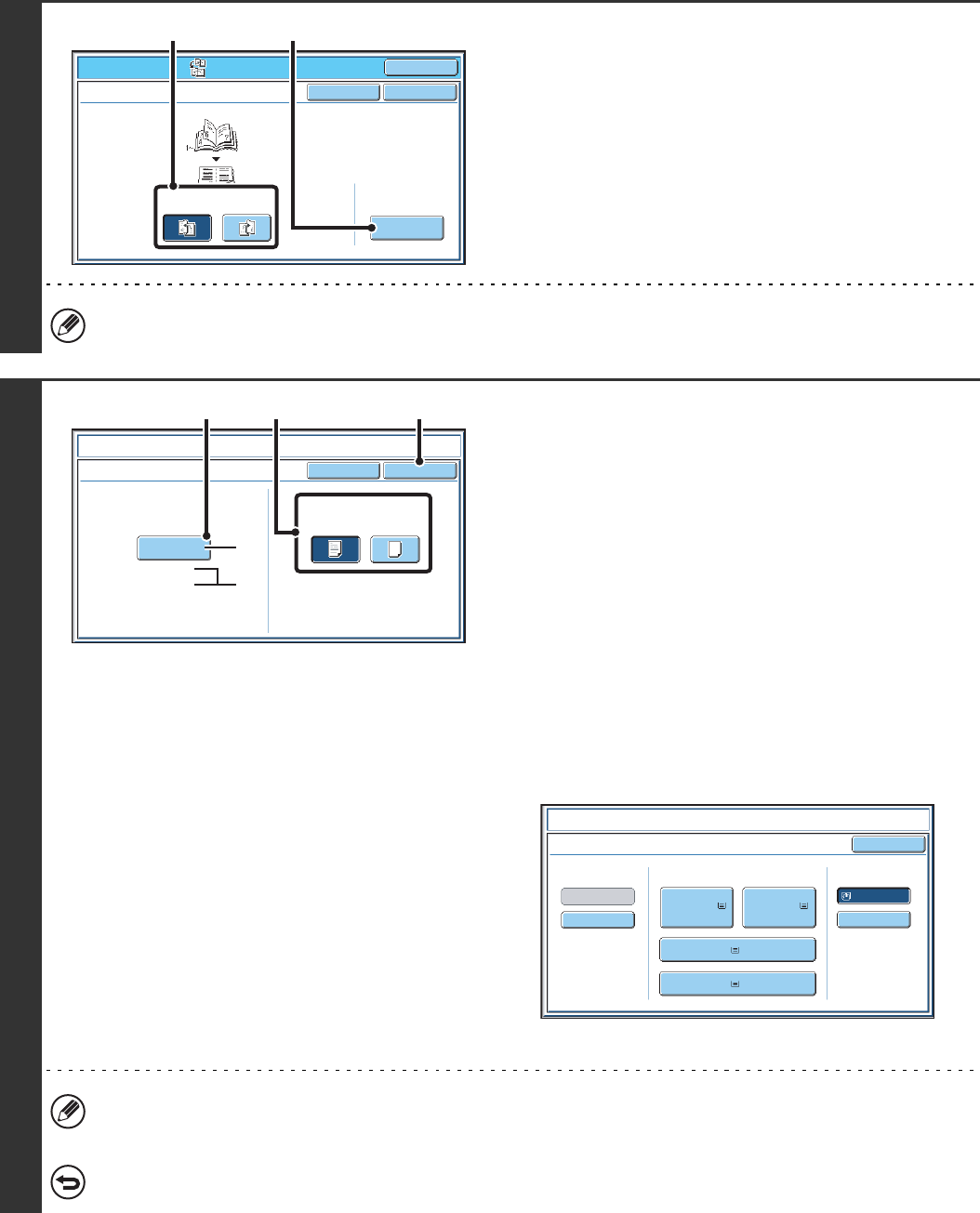
- Select book copy settings 158
- (Tab Copy) 161
- Set the tab width 162
- Load the tab paper 163
- SHEET OF PAPER (Card Shot) 164
- (1) Enter the original size 165
- (2) Touch the [OK] key 165
- COPIES (Stamp) 167
- Select the print position 168
- (3) Touch the [OK] key 169
- Set the date format 171
- Change] key 172
- STAMPING COPIES (Stamp) 173
- (Page Numbering) 175
- Touch the [Print Color] key 176
- Select page number settings 176
- Touch the [Recall] key 179
- Touch the [Store/Delete] key 181
- Touch the [Back] key 182
- [Image Edit] KEY 185
- Enlargement) 188
- (2) (A) (1)(3) 189
- Inch system 189
- B systemA system 189
- ☞ [Image Edit] KEY (page 104) 192
- Select 11x17 Full Bleed 192
- Select Centering 194
- To cancel B/W reverse 197
- [Color Adjustments] KEY 198
- Adjust red, green, or blue 199
- Adjust the image 200
- Background) 201
- 12345678 203
- Adjust the color balance 204
- Adjust the brightness 205
- Adjust the intensity 206
- (Proof Copy) 207
- Change the settings 209
- Touch the [End] key 209
- (Mixed Size Original) 210
- Indicator 212
- CONVENIENT COPY FUNCTIONS 214
- JOB STATUS SCREEN 216
- Job key display 218
- Copy2 002/000 Waiting 218
- IN THE QUEUE 219
- Press the [#/P] key ( ) 221
- Touch the [Store/Delete] tab 221
- Touch a numeric key 221
- [OK] key 222
- APPENDIX 223
- Cover copying condition 224
- Resulting copies 224
- Front cover Back cover 224
- 1st page 2nd page 3rd page 226
- SHARP ELECTRONICS CORPORATION 229
- Facsimile Guide 230
- ABOUT THIS MANUAL 233
- Icons used in the manuals 234
- BEFORE USING THE MACHINE 235
- AS A FAX 235
- BASE SCREEN OF FAX MODE 236
- Customizing displayed keys 237
- ADDRESS BOOK SCREEN 238
- THE ADDRESS BOOK SCREEN 239
- System Settings: Custom Index 240
- Index tabs 240
- FAX TRANSMISSION SEQUENCE 241
- Begin transmission 243
- ENTERING DESTINATIONS 244
- ADDRESS BOOK 245
- Touch the [Address Book] key 246
- Select the destination 246
- To delete a destination 247
- Touch the [YES] key 247
- A DESTINATION 248
- GLOBAL ADDRESS BOOK 249
- USING THE RESEND FUNCTION 251
- CHAIN DIALING 252
- BASIC TRANSMISSION 253
- Address Book 254
- Address Review 254
- Sub Address 254
- Direct TX 254
- TRANSMITTABLE ORIGINAL SIZES 256
- WHEN THE LINE IS BUSY 257
- USING THE AUTOMATIC DOCUMENT 258
- FEEDER FOR TRANSMISSION 258
- USING THE DOCUMENT GLASS FOR 261
- TRANSMISSION 261
- Place next original 262
- Press [Start] 262
- (Pg.No.x) 262
- Configure Read-End 262
- DIRECT TRANSMISSION MODE 263
- JOB STATUS 269
- (1) Touch the [Failed] tab 270
- (2) Touch the [Retry] key 270
- COMPUTER (PC-Fax) 271
- IMAGE SETTINGS 272
- ORIGINAL (2-Sided Original) 273
- (Enlarge/Reduce Transmission) 274
- Touch the [Original] key 275
- Touch the [Scan Size] key 275
- Specify the scan size 275
- Touch the [Size Input] key 277
- Enter the scan size 277
- Touch the [Send Size] key 279
- Specify the send size 279
- CHANGING THE EXPOSURE 281
- CHANGING THE RESOLUTION 282
- Resolution settings 283
- FAX RECEPTION 284
- RECEIVING A FAX 285
- RECEIVING A FAX MANUALLY 286
- FORWARDING RECEIVED FAXES 287
- (Fax Data Forward) 287
- Settings) 288
- USING A PROGRAM TO SEND A FAX 292
- IMAGE (Erase) 294
- Touch the [Read-End] key 298
- (2) Touch the [Timer] key 299
- Set the time with the keys 300
- SINGLE PAGE (Card Shot) 305
- Specify the original size 306
- (Job Build) 308
- ( ) to scan the first set 309
- SIZES (Mixed Size Original) 311
- Select slow scan mode 313
- ☞ SPECIAL MODES (page 60) 313
- FAXES (Own number sending) 315
- INFORMATION (Own Name Select) 316
- RECEPTION (Polling) 317
- Receive the fax 319
- SENDING A FAX WHEN ANOTHER 320
- MACHINE POLLS YOUR MACHINE 320
- (Polling Memory) 320
- To cancel printing 323
- Touch the [Delete Data] key 324
- Touch the [Public Box] key 324
- Touch the [Yes] key 324
- PERFORMING F-CODE 325
- COMMUNICATION 325
- XXXXXXXX 326
- CONFIDENTIAL RECEPTION 329
- Enter PIN via the 10-key 330
- Select polling 331
- (3), (5) 332
- F-CODE POLLING TRANSMISSION 333
- POLLING TRANSMISSION 336
- RELAY BROADCAST TRANSMISSION 340
- USING F-CODES 340
- USING AN EXTENSION PHONE 341
- Replace the extension phone 342
- CHECKING THE STATUS OF FAX 343
- ☞ Job key display (page 116) 344
- COMPLETED 347
- PROGRESS 348
- CHECKING COMPLETED JOBS 349
- RESERVED FAX 350
- PRINTING A TRANSACTION 353
- REPORT / IMAGE SENDING 353
- ACTIVITY REPORT 353
- Message Explanation 355
- IMAGE SENDING ACTIVITY REPORT 356
- IF THE MACHINE IS MOVED 357
- "ON" POSITION 358
- CHECKING THE DATE AND TIME 359
- Scanner Guide 361
- AS A NETWORK SCANNER 366
- USB memory mode 367
- Internet fax mode 367
- PC scan mode 367
- Data entry mode 367
- STORING SENDER INFORMATION 369
- SCAN MODE IN THE ADDRESS BOOK 369
- ADDING DESTINATIONS 370
- BASE SCREEN 371
- Index display 376
- SCAN SEND SEQUENCE 377
- RETRIEVING A DESTINATION 381
- DESTINATIONS 382
- ENTERING AN ADDRESS MANUALLY 384
- TRANSMITTING AN IMAGE 388
- (1) Touch the [Scan] tab 389
- (2) Touch the [Original] key 389
- Specify the destination 390
- AND BODY TEXT 393
- Enter the subject 394
- Name] key 394
- [Reply-To] key 394
- ENTERING A FILE NAME 401
- [Subject] key 405
- [Body Text] key 406
- INTERNET FAX DESTINATIONS 411
- (2) Touch the [Detail] key 412
- COMPUTER (PC-I-Fax) 413
- SIZE (Enlarge/Reduce) 416
- (ORIGINAL IMAGE TYPE) 422
- (1) Touch the [Manual] key 423
- CHANGING THE FILE FORMAT 425
- Set the format 426
- Select the file format 428
- CHANGING THE COLOR MODE 429
- (2) Touch the [Program] key 433
- SCANNING AN ORIGINAL AS TWO 437
- Select Dual Page Scan 438
- (Timer Transmission) 439
- (Suppress Background) 442
- A SINGLE PAGE (Card Shot) 444
- [COLOR START] key ( ) or the 446
- (3) Touch the [To] key 448
- Read-EndConfigure 449
- ☞ SPECIAL MODES (page 70) 452
- SPECIAL MODES (page 70) 455
- Select print conditions 457
- CHECKING THE STATUS OF 459
- TRANSMISSION/RECEPTION 459
- ☞ Job key display (page 101) 460
- STOPPING A SCAN JOB BEING 465
- TRANSMITTED OR WAITING TO BE 465
- TRANSMITTED 465
- GIVING PRIORITY TO A SCAN 466
- TRANSMISSION JOB 466
- INTERNET FAX RECEPTION 468
- FUNCTIONS 468
- Received data is stored 470
- FORWARDING RECEIVED INTERNET 471
- FAXES TO AN E-MAIL ADDRESS 471
- (Inbound Routing Settings) 471
- SCANNING FROM A COMPUTER 472
- (PC Scan Mode) 472
- [At your computer] 473
- (2) Select scan settings 474
- Click the [Scan] button 475
- [At the machine] 476
- METADATA DELIVERY 477
- PREPARATIONS FOR METADATA 478
- TRANSMITTING METADATA 479
- METADATA FIELDS 481
- Printer Guide 483
- PRINTING WITHOUT THE PRINTER 485
- USEFUL INFORMATION 485
- PRINTER DRIVER SPECIFICATIONS 485
- PRINTING FROM WINDOWS 489
- (1) Click the [Paper] tab 490
- (2) Select the paper size 490
- (3) Click the [OK] button 490
- SELECTING THE PAPER 491
- PRINTING WHEN THE USER 492
- VIEWING PRINTER DRIVER HELP 494
- SAVING FREQUENTLY USED PRINT 495
- SETTINGS 495
- Check and save the settings 496
- Click the [OK] button 496
- Start printing 496
- USING SAVED SETTINGS 497
- CHANGING THE PRINTER DRIVER 498
- DEFAULT SETTINGS 498
- [OK] button 499
- PRINTING FROM A MACINTOSH 500
- Mac OS 9 501
- PRINTING 502
- Select print settings 504
- Click the [Print] button 504
- (2) Click the [Print] button 507
- FREQUENTLY USED FUNCTIONS 509
- BLACK AND WHITE PRINTING 510
- Macintosh 510
- TWO-SIDED PRINTING 511
- Letter or A4 Ledger or A3 513
- Staple function 516
- CONVENIENT PRINTING 518
- ORIENTATION OF THE IMAGE 522
- (Zoom/XY-Zoom) 523
- THE IMAGE (Color Adjustment) 526
- ABCD ABCD 527
- TYPE (Advanced Color) 528
- (Watermark) 530
- (Image Stamp) 531
- (1) Click the [Advanced] tab 532
- (2) Click the [Edit] button 532
- (3) Create an overlay file 532
- (2) Select the overlay file 532
- PRINT FUNCTIONS FOR SPECIAL 533
- PURPOSES 533
- (1) Select [Paper Feed] 534
- (1) Select [General] 534
- (Tab Printing) 537
- CONVENIENT PRINTER FUNCTIONS 539
- SAVING AND USING PRINT FILES 540
- (Retention/Document Filing) 540
- (1) Select [Job Handling] 541
- PRINTING WITHOUT THE 542
- PRINTER DRIVER 542
- Access the FTP server 543
- Print the selected file 544
- Access the USB memory device 544
- (1) Select print conditions 545
- (2) Touch the [Print] key 545
- SUBMIT PRINT JOB 546
- FTP PRINT 546
- E-MAIL PRINT 547
- (1) (2)(3) 548
- CANCELING A PRINT JOB 550
- PRINTING WHEN PAPER RUNS OUT 551
- SPECIFICATIONS 552
- Document Filing Guide 555
- DOCUMENT FILING 559
- USES OF DOCUMENT FILING 560
- BEFORE USING DOCUMENT FILING 561
- User Name: Name 1 563
- File Name: Meeting handout 563
- Password: 12345678 563
- Copy mode 564
- Image Send mode 564
- Scan to HDD mode 565
- IMAGE SEND 566
- DOCUMENT 566
- SAVING FILES WITH DOCUMENT 567
- Touch the [File] key 569
- FILE INFORMATION 571
- Assigning a file name 572
- Specifying the folder 572
- (2) Touch the [Password] key 573
- ☞ FILE INFORMATION (page 17) 574
- ☞ [Original] key (page 21) 574
- ☞ [Color Mode] key (page 22) 574
- [Original] key 575
- [Exposure] key 575
- [Color Mode] key 576
- (3)(1)(2)(4) 578
- USING STORED FILES 579
- Select the operation 580
- FOLDER SELECTION SCREEN 581
- FILE SELECTION SCREEN 582
- SELECTING A FILE 583
- JOB SETTINGS SCREEN 584
- PRINTING A STORED FILE 585
- PRINT SETTINGS SCREEN 586
- BATCH PRINTING 587
- (1) (3)(2) 588
- SENDING A STORED FILE 589
- SEND SETTINGS SCREEN 590
- PROPERTIES OF STORED FILES 591
- MOVING A STORED FILE 593
- Touch the [Move] key 594
- DELETING A STORED FILE 595
- SEARCHING FOR A STORED FILE 597
- Using the user name to search 598
- Touch the [Start Search] key 599
- Searching within a folder 600
- Start searching 602
- System Settings Guide 604
- Table of Contents 605
- SYSTEM SETTINGS FOR FAX 606
- About This Manual 607
- SYSTEM SETTINGS 609
- Common Operation Methods 610
- SYSTEM SETTINGS (GENERAL) 611
- ■ Total Count 612
- ■ Default Settings 612
- ■ List Print (User) 612
- ■ Paper Tray Settings 613
- ■ Address Control 613
- ■ Fax Data Receive/Forward 613
- ■ Printer Condition Settings 614
- ■ Document Filing Control 615
- ■ USB-Device Check 615
- ■ User Control 615
- Total Count 616
- Default Settings 617
- List Print (User) 618
- Paper Tray Settings 619
- Tray Settings 620
- Paper Type Registration 621
- Auto Tray Switching 621
- Address Control 622
- Settings 623
- Custom Index 624
- Fax Data Receive/Forward 626
- Printer Condition Settings 627
- PCL Settings 628
- PostScript Setting 628
- Document Filing Control 629
- USB-Device Check 630
- User Control 631
- (ADMINISTRATOR) 632
- Touch the [Admin Login] key 633
- User Authentication 634
- Admin Login 634
- ■ Energy save 636
- ■ Operation Settings 636
- ■ Device Control 637
- ■ Copy Function Settings 638
- ■ Network Settings 639
- ■ Printer Settings 640
- ■ Image Send Settings 640
- ■ Document Filing Settings 643
- ■ List Print (Administrator) 645
- ■ Security Settings 645
- ■ Enable/Disable Settings 646
- ■ Product Key 648
- ■ Sharp OSA Settings 648
- Other Settings 650
- User List 651
- Page Limit Group List 653
- Authority Group List 654
- Item Description 655
- Favorite Operation Group List 657
- Home Screen List 658
- User Count 659
- Resetting user counts 660
- Energy Save 661
- Operation Settings 662
- Customize Key Setting 663
- Home Screen Settings 663
- MFP Display Pattern Setting 663
- Device Control 664
- Registration Adjustment 665
- Optimization of a Hard Disk 665
- Clear All Job Log Data 665
- Disabling of Devices 667
- Fusing Control Settings 667
- Copy Function Settings 668
- Color Adjustments 671
- Network Settings 672
- Printer Settings 673
- Interface Settings 674
- Auto Color Calibration 675
- Image Send Settings 676
- Scan Settings 679
- I-Fax Settings 681
- I-Fax Output Setting 684
- Anti Junk Mail/Domain Name 684
- Document Filing Settings 685
- Document Output Options 687
- List Print (Administrator) 688
- Security Settings 689
- Enable/Disable Settings 690
- Change Administrator Password 693
- Product Key 693
- Restore Factory Defaults 694
- Store Current Configuration 694
- Restore Configuration 694
- Sharp OSA Settings 695
- F-Code Memory Box 699
- Fax Polling Security 709
Manuais e produtos relacionados com Impressoras Sharp MX-7001
 (156 páginas)
(140 páginas)
(32 páginas)
(20 páginas)
(380 páginas)
(181 páginas)
(799 páginas)
(655 páginas)
(88 páginas)
(118 páginas)
(121 páginas)
(46 páginas)
(47 páginas)
(28 páginas)
(88 páginas)
(2 páginas)
(849 páginas)
(32 páginas)
(84 páginas)
(52 páginas)
(156 páginas)
(140 páginas)
(32 páginas)
(20 páginas)
(380 páginas)
(181 páginas)
(799 páginas)
(655 páginas)
(88 páginas)
(118 páginas)
(121 páginas)
(46 páginas)
(47 páginas)
(28 páginas)
(88 páginas)
(2 páginas)
(849 páginas)
(32 páginas)
(84 páginas)
(52 páginas)
© 2020, manymanuals-pt.com. Todos os direitos reservados. | 0.077 s |
 Manymanuals.com
 Manymanuals.de
 Manymanuals.fr
 Manymanuals.it
 Manymanuals.pl
 Manymanuals.cz
 Manymanuals.es
 Manymanuals-pt.com
Comentários a estes Manuais