Sharp AL-1670 Manual do Utilizador Página 1
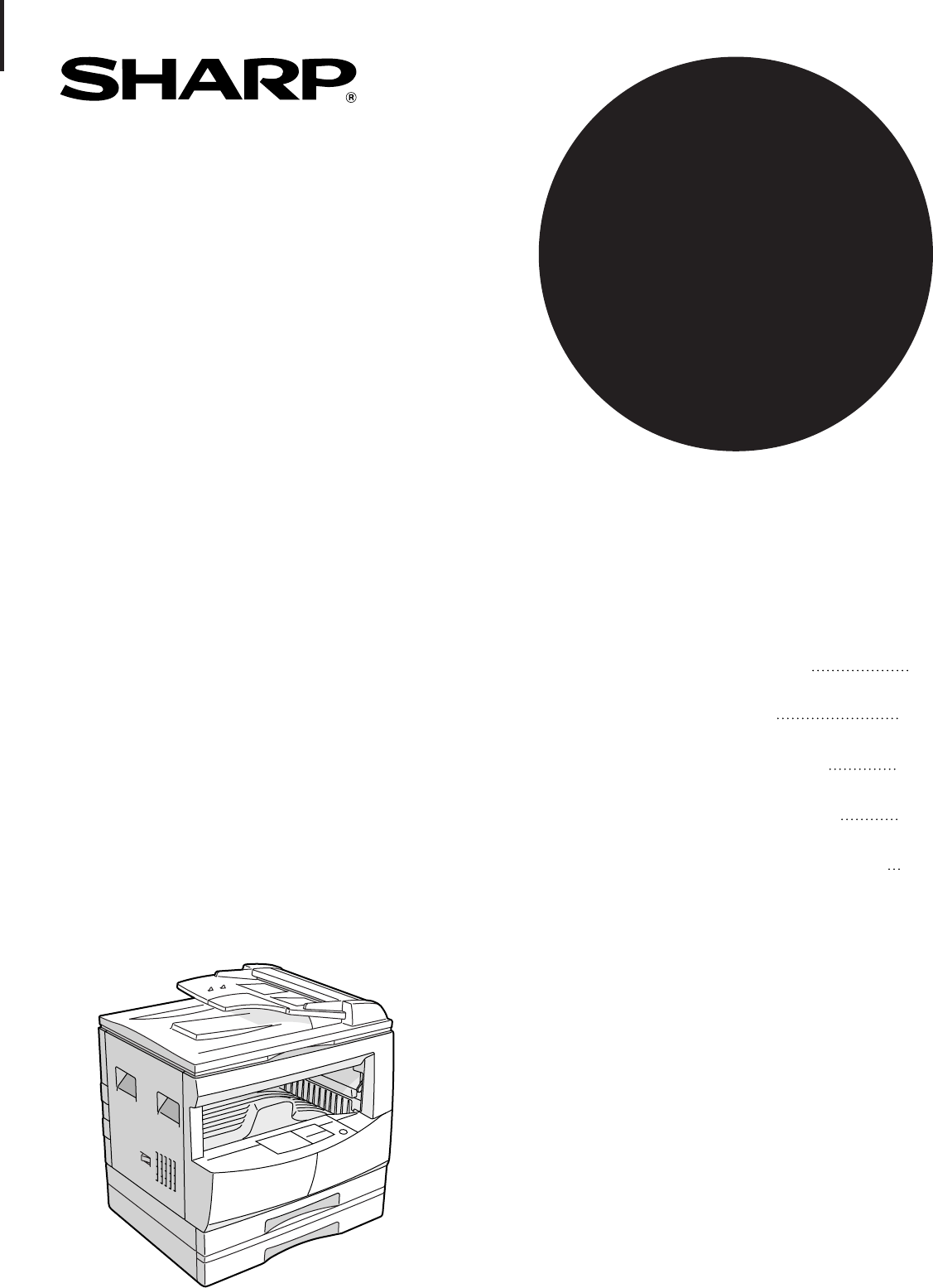
Consulte online ou descarregue Manual do Utilizador para Impressoras Sharp AL-1670. Sharp AL-1670 User Manual Manual do Utilizador
- Página / 72
- Índice
- MARCADORES

- FOR YOUR PROTECTION 2
- 1-(630)378-3590 2
- CONTENTS Page 3
- CAUTIONS 4
- MAIN FEATURES 5
- PART NAMES AND FUNCTIONS 6
- COPIER INSTALLATION 10
- CAUTIONS ON HANDLING 11
- CHECKING PACKED COMPONENTS 12
- AND ACCESSORIES 12
- GETTING STARTED 13
- Power on 14
- LOADING COPY PAPER 15
- Turn the power switch on 18
- Adjust the copy density 18
- NORMAL COPYING 19
- Using the original table 20
- Automatic 22
- REDUCTION/ENLARGEMENT/ZOOM 23
- BYPASS FEED (special paper) 24
- MAKING COPIES 26
- Two-sided copying 26
- SORT/GROUP 27
- Copying in the sort mode 28
- Interrupting a copy run 29
- AUTOMATIC EXPOSURE ADJUSTMENT 30
- TONER SAVE MODE 31
- Original Copy 32
- SPECIAL FEATURES 33
- B/W REVERSE 34
- DUAL PAGE COPY 35
- ROTATION COPYING 36
- 2 IN 1 OR 4 IN 1 37
- Center erase 39
- Edge + Center erase 39
- Edge erase 39
- MARGIN SHIFT 40
- GENUINE SUPPLIES 41
- TD CARTRIDGE REPLACEMENT 42
- DRUM CARTRIDGE REPLACEMENT 44
- MISFEED REMOVAL 45
- Misfeed in the bypass tray 46
- Misfeed in the copier 46
- Fusing unit release lever 48
- USER PROGRAMS 51
- POWER SAVE MODES 54
- Setting the power save modes 55
- Copying from the preheat mode 55
- USER MAINTENANCE 56
- Charger 57
- COPIER TROUBLE? 58
- Self-diagnostic function 59
- SUPPLIES 60
- GENERAL INFORMATION 62
- Moving instructions 62
- TD cartridge lock 62
- SPECIFICATIONS 63
- SINGLE PASS FEEDER 64
- MATERIAL SAFETY DATA SHEET 67
- WARNING: 71
- SHARP ELECTRONICS CORPORATION 72
Resumo do Conteúdo
• GETTING STARTED• MAKING COPIES• SPECIAL FEATURES• STATUS INDICATORS• GENERAL INFORMATION216303949DIGITAL LASER COPIER/PRINTERMODELAL-1670PageCOPIER
8GETTING STARTED4" (10 cm)Copier installationCOPIER INSTALLATIONImproper installation may damage the copier. Please note the following duringinit
9GETTING STARTEDCAUTIONS ON HANDLINGBe careful in handling the copier as follows to maintain the performance of thiscopier.Do not drop the copier, sub
10GETTING STARTEDCHECKING PACKED COMPONENTSAND ACCESSORIESOpen the carton and check to ensure that the following components and accessoriesare include
11GETTING STARTEDSET-UP1Remove all pieces of tape, then open the documentfeeder cover and remove the protective material.2Use a coin (or other suitabl
12GETTING STARTEDSet-upSET-UPPressureplate lockScrew6Store the pressure plate lock which has been removedin step 5 and the screw which has been remove
13GETTING STARTED1Gently lift and pull out the paper tray until it stops.2Push the pressure plate down until it locks in place.3Fan the copy paper and
14GETTING STARTEDChanging the copy paper size in the tray1Gently lift and pull out the paper tray until it stops.2Push the pressure plate down until i
15GETTING STARTED8To set the selected paper size, press the PAPER SIZEENTER ( ) key.●The selected paper feed location indicator will blink and the cor
16MAKING COPIESNORMAL COPYINGThis copier has two document input stations — a singlepass feeder (SPF) for automatic document feeding and anoriginal tab
17MAKING COPIESNormal copyingNORMAL COPYINGUnits digitTens digit●For manual copy density adjustment, press the AUTO/MANUAL/PHOTO ( / / ) key to select
FOR YOUR PROTECTION...To aid in reporting this compact copier in case of loss or theft, please record below theserial number located on the back of th
18MAKING COPIESUsing the original table1Turn the power switch on.●It will take about 35 seconds for the copier to warm up. However, youcan make desire
19MAKING COPIES●For photographs, select PHOTO ( ) and then adjust with the light( ) and dark ( ) keys as desired.●There are 5 exposure steps indicated
20MAKING COPIESREDUCTION/ENLARGEMENT/ZOOMReduction and enlargement ratios can be selected either automatically with theAUTO IMAGE ( ) key or manually
21MAKING COPIESManual1Place the original in the document feeder tray or on theoriginal table.2Use the PRESET RATIO selector ( , ) keys and thezoom (
22MAKING COPIES1Unfold the bypass tray.●When feeding 8-1/2" x 14" or 11" x 17" sized paper, extend the bypasstray.2Set the paper g
23MAKING COPIES4Press the TRAY SELECT ( ) key to select the bypasstray.5Leave the copy quantity at 0 if using special papers. Setthe number of copies
24MAKING COPIESTWO-SIDED COPYINGTwo-sided copies can be made on this copier using the bypass tray.Two-sided copying1Place the first original on the or
25MAKING COPIESSORT/GROUPThis copier has two sorter modes for different copying jobs: one sorts copiesinto sets matching the sequence of the originals
26MAKING COPIESCopying in the sort modeWhen copying in the sort mode, the original image will be stored in the copiermemory each time an original is s
27MAKING COPIES1Press the INTERRUPT ( ) key.●The copier will return to the initial settings.●When the SPF is being used, the copier will stop after co
1SPECIAL FEATURESGETTING STARTEDSTATUS INDICATORSMAKING COPIESGENERAL INFORMATIONCONTENTS PageGETTING STARTED●CAUTIONS . . . . . . . . . . . . . . . .
28MAKING COPIES1Press the AUTO/MANUAL/PHOTO ( / / ) keyto select the PHOTO ( ) mode.2Press and hold down the AUTO/MANUAL/PHOTO ( // ) key for approxim
29MAKING COPIESToner save modeTONER SAVE MODEThis mode reduces toner consumption by approximately 10% in the automaticand manual exposure modes. Copie
30SPECIAL FEATURESXY ZOOMThe XY ZOOM feature allows the horizontal and vertical copy ratios to bechanged independently.To use the XY ZOOM feature with
31SPECIAL FEATURESXY zoomXY ZOOM5Use the PRESET RATIO selector ( , ) keys andzoom ( , ) keys to change the copy ratio in thehorizontal direction in
32SPECIAL FEATURES1Place the original in the document feeder tray or on theoriginal table.2Press the B/W REVERSE ( ) key.3Check the copy paper size.●I
33SPECIAL FEATURES1Place the originals on the original table with the center ofthe two pages aligned with the paper size index ( 81/2).Close the docum
34SPECIAL FEATURESRotation copyingOriginal PaperCopyROTATION COPYINGIf user program No. 7 is set, the image of the original will rotate when theorient
35SPECIAL FEATURES2 IN 1 OR 4 IN 1The 2 in 1 or 4 in 1 feature is used to copy 2 or 4 originals, collectively in aspecified order, onto one sheet.●The
36SPECIAL FEATURES4Select the desired pattern number using copy quantitykeys.●The selected number will blink in the copy quantity display. For layoutp
37SPECIAL FEATURESEraseERASEThis copier has an edge erase mode and a center erase mode.●Edge erase can be used to eliminate shadow lines around the ed
2GETTING STARTEDCautionsCAUTIONSFollow the cautions below when using this copier.●The fusing area is hot. Exercise care in this area when removing mis
38SPECIAL FEATURESMARGIN SHIFTThe MARGIN SHIFT feature automatically shifts the text or image to theright to increase the left margin by approximately
39STATUS INDICATORS1Open the bypass tray. Lift slightly on the side cover andslide the cover out until it stops.2Push gently the right side of the fro
40STATUS INDICATORS TD cartridge replacementTD CARTRIDGE REPLACEMENT5Remove the protective cover from the TD cartridge byunlatching three cover hooks
41STATUS INDICATORS1Open the bypass tray. Lift slightly on the side cover andslide the cover out until it stops.2Push gently the right side of the fro
42STATUS INDICATORSDRUM CARTRIDGE REPLACEMENT Drum cartridge replacement5Remove the new drum cartridge from the protective bagand gently insert the le
43STATUS INDICATORSMISFEED REMOVALThe copier will stop when a misfeed occurs. The misfeed ( ) indicator will blinkand blinking red misfeed location in
44STATUS INDICATORS Misfeed removalMISFEED REMOVAL3If the misfed original cannot be removed in steps 1 and2, remove the misfed original from the exit
45STATUS INDICATORSMISFEED REMOVAL Misfeed removalIf the misfed paper is seen from this side, proceed to “C. Misfeed in the transport area”.If paper i
46STATUS INDICATORSMISFEED REMOVAL Misfeed removalRoller rotating knobFusing unit release lever2Turn the roller rotating knob in the direction of thea
47STATUS INDICATORSMISFEED REMOVAL Misfeed removal3Close the side cover by pressing the handle on the cover.●The misfeed ( ) indicator will go out.Mis
3GETTING STARTEDMain featuresMAIN FEATURESHigh-speed laser copying●First-copy time is only 7.2 seconds (except in a power save mode or immediately aft
48STATUS INDICATORS2Remove the misfed paper.●Be careful not to tear the misfed paper during removal.3If the misfed paper is not seen in step 2, gently
49GENERAL INFORMATIONUser programsUSER PROGRAMSThe user programs allow the parameters of certain functions to be set, changed, orcanceled as desired.L
50GENERAL INFORMATION2Enter a program number using the left copy quantity( ) key.●The selected program number will blink in the copy quantity display.
51GENERAL INFORMATION5Press the START ( ) key.●The right-hand number in the copy quantity display will be steadily litand the entered value will be st
52GENERAL INFORMATIONPOWER SAVE MODESThe copier has two power save modes to reduce overall power consumptionthereby reducing the cost of operation. In
53GENERAL INFORMATIONSetting the power save modesThe time that elapses before the copier enters a power save mode after anyoperation is made can be se
54GENERAL INFORMATIONUser maintenanceUSER MAINTENANCEProper care is essential for clean, sharp copies. Please take a few minutes toregularly clean you
55GENERAL INFORMATIONCharger cleanerUSER MAINTENANCEUser maintenance1Turn the power switch off.2Open the bypass tray. Lift slightly on the side cover
56GENERAL INFORMATIONProblem Solution●Copier plugged in?●Power switch ON?●Copy density properly adjusted?●Is the original placed face down onthe ori
57GENERAL INFORMATIONThe TD cartridge is not installed. Install theTD cartridge.Side cover(s) is open.Close the front and side covers securely.The TD
4GETTING STARTEDPART NAMES AND FUNCTIONSOverall layoutPart names and functionsq Document feeder coverOpen to make copies from the original table.w Ori
58GENERAL INFORMATIONSUPPLIESTypes and sizes of copy paperSize Weight Capacity Special paper(21 lb. bond paper)Paper tray 5-1/2" x 8-1/2"* 1
59GENERAL INFORMATIONSUPPLIESGenuine supplies statementStandard supplies for this copier that are to be replaced by the user are copypaper, TD cartrid
60GENERAL INFORMATIONMOVING INSTRUCTIONSWhen moving this copier, follow the procedure below.When moving this copier, be sure to remove the TD cartridg
61GENERAL INFORMATIONType Digital laser copier, desktopCopy system Dry, electrostatic transferOriginals Sheets, bound documentsOriginal sizes Max. 11&
62GENERAL INFORMATIONSPECIFICATIONSSpecificationsOverall dimensions 23-15/64" (W) x 20-23/32" (D)(with bypass tray folded) (590 mm (W) x 526
63GENERAL INFORMATION22 in 1 . . . . . . . . . . . . . . . . . . . . . . . . . . . . . . . . . . . . . . . 3544 in 1 . . . . . . . . . . . . . . . .
64GENERAL INFORMATIONRReduction . . . . . . . . . . . . . . . . . . . . . . . . . . . . . . . . . . . 20Replacement– drum cartridge . . . . . . . . .
65SHARP Date Issued:Nov. 1, 1998MATERIAL SAFETY DATA SHEETMSDS No. F-00841Section 1. Product IdentificationProduct:AL-160TD (Black Toner)Section 2. Su
66Section 6. Physical Chemical CharacteristicsBoiling / Melting Point: Not applicable Specific Gravity: 1.1Vapor Pressure: Not applicable Solubility i
67SHARPDate Issued :Nov. 1, 1998MATERIAL SAFETY DATA SHEETMSDS No. F-30841Section 1. Product IdentificationProductAL-160TD(Black Developer)Section 2.
5GETTING STARTEDPART NAMES AND FUNCTIONS!5 SPF exit areaFinished originals are output here.!6 Document feeder trayHolds up to 30 originals.!7 Original
68Section 6. Physical Chemical CharacteristicsBoiling / Melting Point: Not applicable Specific Gravity: about 7.3Vapor Pressure: Not applicable Solubi
WARNING:FCC Regulations state that any unauthorized changes or modifications tothis equipment not expressly approved by the manufacturer could void th
PRINTED IN HONG KONG99E KS TINSE0232QSZZAL-1670SHARP ELECTRONICS CORPORATIONSharp Plaza, Mahwah, New Jersey 07430-2135.SHARP CORPORATIONwww.sharp-u
6GETTING STARTEDOperationpanelPART NAMES AND FUNCTIONSPart names and functionsq Operation panel and keys for printer featuresSee the printer manual.w
7GETTING STARTEDPART NAMES AND FUNCTIONSPart names and functionsGETTING STARTED@0 SORT/GROUP ( / ) key and indicators(p. 25)Press to select the sort o
Manuais e produtos relacionados com Impressoras Sharp AL-1670
 (710 páginas)
(156 páginas)
(140 páginas)
(32 páginas)
(20 páginas)
(380 páginas)
(181 páginas)
(799 páginas)
(655 páginas)
(88 páginas)
(118 páginas)
(121 páginas)
(46 páginas)
(47 páginas)
(28 páginas)
(88 páginas)
(2 páginas)
(849 páginas)
(32 páginas)
(84 páginas)
(710 páginas)
(156 páginas)
(140 páginas)
(32 páginas)
(20 páginas)
(380 páginas)
(181 páginas)
(799 páginas)
(655 páginas)
(88 páginas)
(118 páginas)
(121 páginas)
(46 páginas)
(47 páginas)
(28 páginas)
(88 páginas)
(2 páginas)
(849 páginas)
(32 páginas)
(84 páginas)
© 2020, manymanuals-pt.com. Todos os direitos reservados. | 0.050 s |
 Manymanuals.com
 Manymanuals.de
 Manymanuals.fr
 Manymanuals.it
 Manymanuals.pl
 Manymanuals.cz
 Manymanuals.es
 Manymanuals-pt.com
Comentários a estes Manuais