Sharp XV-Z9000E Especificações
Consulte online ou descarregue Especificações para Projetores Sharp XV-Z9000E. Sharp XV-Z9000E Specifications Manual do Utilizador
- Página / 63
- Índice
- RESOLUÇÃO DE PROBLEMAS
- MARCADORES

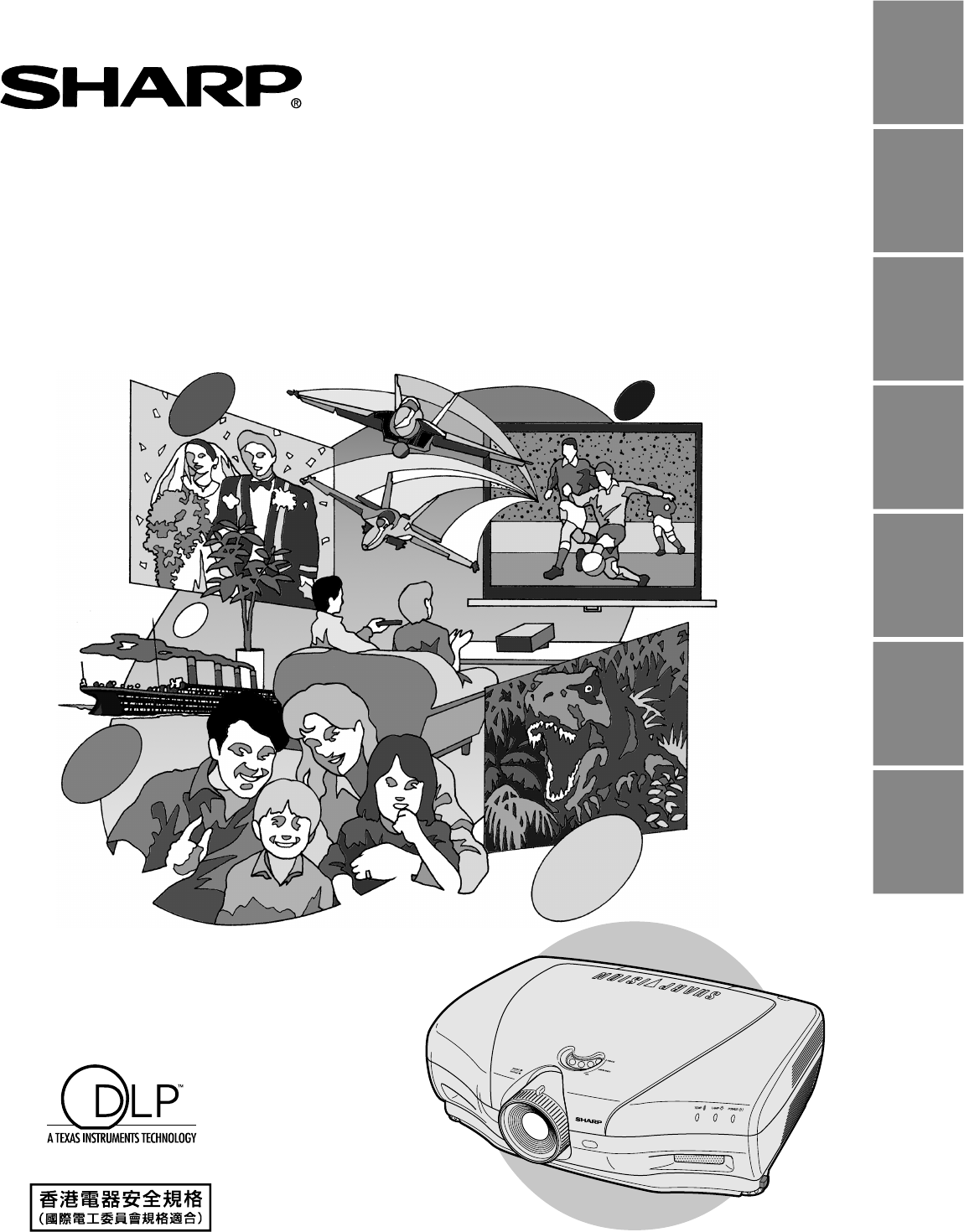
- OPERATION MANUAL ENGLISH 3
- WARNING: 4
- IMPORTANT SAFEGUARDS 5
- Notes on Operation 6
- Temperature Monitor Function 7
- Lamp Monitor Function 7
- Using the Terminal Cover 7
- Outstanding Features 8
- Accessing the PDF Manuals 9
- Contents 10
- Part Names 11
- Projector 12
- Remote Control 13
- Inserting the batteries 13
- Supplied Accessories 14
- Power Supply 15
- Connections 15
- Connecting to Video Equipment 15
- Connecting to a Computer 17
- Operating the Remote Control 18
- Power ON/OFF 19
- Zooming and Focusing 19
- Using the Adjustment Feet 20
- Setting Up the Screen 20
- Using the Lens Shift 20
- Keystone Correction 21
- : Picture area 22
- Setup & Connections 23
- Rear Projection 24
- Projection Using a Mirror 24
- Ceiling-mount Projection 24
- Image Projection 24
- Using the Operation Buttons 25
- COMPUTER 26
- VIDEO/DVD/DTV 26
- Gamma Correction Function 27
- Basic Operations 28
- Menu Bars 29
- Main menu 30
- Adjusting the Picture 31
- GUI Menu Screen 32
- Selecting the Signal Type 33
- Progressive Mode 33
- Saving the adjustment setting 35
- Selecting a saved setting 35
- Special Mode Adjustment 36
- Checking the Input Signal 36
- Auto Sync Adjustment 37
- Auto Sync Display Function 38
- Description of OSD Display 39
- Theatre Mode Functions 40
- Selecting a Background Image 41
- button button 42
- RS-232C on 43
- Basic Operation 44
- Lamp/Maintenance Indicators 47
- Lamp Maintenance 48
- Replacing the Lamp 49
- User service screws 50
- Cleaning the Air Filters 51
- Using the Kensington Lock 51
- Troubleshooting 52
- Connecting Pin Assignments 53
- Response code format 54
- Command format 54
- PICTUREFINE SYNC 55
- OPTIONSPRJ MODE 56
- LANGUAGE 56
- Appendix 57
- Computer Compatibility Chart 58
- Dimensions 59
- Specifications 60
- Glossary 61
- SHARP CORPORATION 63
Resumo do Conteúdo
ENGLISHDEUTSCHFRANÇAISSVENSKAESPAÑOLITALIANONEDERLANDSOPERATION MANUALBEDIENUNGSANLEITUNGMODE D’EMPLOIBRUKSANVISNINGMANUAL DE MANEJOMANUALE DI ISTRUZI
8ImportantInformationContentsImportant InformationIMPORTANT SAFEGUARDS ... 3Outstanding Features ... 6How to
9ImportantInformationPart NamesFront and Top View161845454526262617232326Focus ringRemote control sensorPOWER indicator4Intake ventilative holeLAMP RE
10ImportantInformationPart NamesProjectorNumbers next to the part names refer to the main pages in this manual where the topic is explained.Side and R
11ImportantInformationPart NamesRemote ControlFront ViewTop View16Remote control signal transmitterWired remote control jack• If the remote control ge
12ImportantInformationSupplied AccessoriesRemote control Two AA size batteriesTwo projector operation manualsSharpVision Manager operation manualPower
13Setup & ConnectionsPower SupplyConnecting the Power CordPlug the supplied power cord into the AC socket on the back of the projector.Connections
14Setup & Connections12 To S-video output terminal2 To video output terminal1ProjectorVCR,Laser disc player,DVD player orDTV decoderConnecting to
15Setup & ConnectionsConnecting to a ComputerYou can connect your projector to a computer for projection of full colour computer images.Connecting
16Setup & ConnectionsOperating the Remote ControlThe remote control can be used to control the projec-tor within the range shown on the left.• The
17Setup & ConnectionsPower ON/OFFPress POWER ON.• The flashing blue LAMP REPLACEMENT indicatorshows that the lamp is warming up. Wait until theind
This equipment complies with the requirements of Directive 89/336/EECand 73/23/EEC as amended by 93/68/EEC.Dieses Gerät entspricht den Anforderungen d
18Setup & ConnectionsUsing the Adjustment FeetSetting Up the ScreenYou can adjust the height of the image by raising the projector withthe foot re
19Setup & ConnectionsKeystone CorrectionThis function can be used to adjust the Keystonesettings.1 Press KEYSTONE on the remote control.2 Press EN
20Setup & ConnectionsAdjusting the Projection DistancePosition the projector perpendicular to the screen with all feet flat and leveled to achieve
21Setup & ConnectionsAdjusting the Projection DistanceUpper and Lower Lens Shift Position• This projector is equipped with a lens shift function t
22Setup & ConnectionsRear Projection• Place a translucent screen between the projector andthe audience.• Use the projector’s menu system to revers
23Operation ButtonsSelecting the Input Signal SourceUsing the Operation ButtonsPress INPUT on the projector, INPUT 1, INPUT 2,INPUT 3, INPUT 4 or INPU
24Operation ButtonsCOMPUTEREXAMPLE960 ⳯ 720 1280 ⳯ 720480i480PNTSCPALSECAM960 ⳯ 720 1280 ⳯ 720480P––720P––1280 ⳯ 7201280 ⳯ 7201280 ⳯ 720SIDE BAR STRET
25Operation ButtonsGamma Correction Function• Gamma is an image quality enhancement functionthat offers a richer image by brightening the darkerportio
26Basic OperationBasic OperationsUsing the GUI (Graphical User Interface) Menu Screen(GUI) On-screen Display1INPUT 3, 4 (VIDEO) mode1INPUT 1, 2 (COMPO
27Basic OperationMenu BarsItems on the INPUT 3 or 4 Mode Menu BarMain menuSub menuMain menuSub menuPictureTint Ⳮ30ⳮ30Color Ⳮ30ⳮ30Sharp Ⳮ30ⳮ30Contrast
1ImportantInformationIMPORTANTFor your assistance in reporting the loss or theft of yourProjector, please record the Serial Number located onthe botto
28Basic OperationMenu BarsItems on the INPUT 1, 2 or 5 Mode Menu BarMain menuSub menuMain menuSub menuPicture PRJ ModeOptionsFine SyncTint Ⳮ30ⳮ30Color
29Basic OperationAdjusting the PictureYou can adjust the projector’s picture to your prefer-ences with the following picture settings.Description of A
30Basic OperationAdjusting the PictureAdjusting the Colour TemperatureThis function can be used to adjust the colourtemperature to suit the type of im
31Basic OperationSelecting the Signal TypeThis function allows you to select the input signal typeCOMPONENT or RGB for INPUT 1 or 2.1 Press MENU. Men
32Basic OperationWhen displaying computer patterns which are verydetailed (tiling, vertical stripes, etc.), interference mayoccur between the DMD pixe
33Basic OperationAdjusting the Computer Images (RGB menu only)Saving and Selecting Adjustment SettingsThis projector allows you to store up to seven a
34Basic OperationAdjusting the Computer Images (RGB menu only)Special Mode AdjustmentOrdinarily, the type of input signal is detected and thecorrect r
35Basic OperationAdjusting the Computer Images (RGB menu only)Auto Sync Adjustment• Used to automatically adjust a computer image.• Auto Sync adjustme
36Basic OperationReducing Image Noise (VIDEO menu only)Auto Sync Display FunctionNormally, an image is not superimposed during AutoSync adjustment. Yo
37Basic OperationTurning On/Off the On-screen DisplayThis function allows you to turn on or off the on-screenmessages that appear during input select.
2ImportantInformationENGLISHCaution Concerning the Lamp ReplacementSee “Replacing the Lamp” on page 47.LAMP REPLACEMENT BEFORE REMOVING THE SCREW, DIS
38Basic OperationSelected itemTheatre Mode FunctionsFunction as a toggle switch for controlling the quantityof projected light. Select “NORMAL” or “BR
39Basic OperationSelecting a Background Image(GUI) On-screen DisplayThis function allows you to select the image displayedwhen no signal is being sent
40Basic OperationWith this function, you can adjust the vertical size ofthe display to allow for subtitles.Description of Subtitle Setting1 Press MENU
41Basic OperationSelecting the Economy Mode(GUI) On-screen DisplayThese functions allow you to reduce the powerconsumption when the projector is in st
42Basic OperationSelecting the Transmission Speed (RS-232C)This menu allows you to adjust the transmission speedof the RS-232C connection by selecting
43Basic OperationReversing/Inverting Projected ImagesThis projector is equipped with a reverse/invert imagefunction which allows you to reverse or inv
44Basic OperationDisplaying the Adjustment SettingsThis function can be used to display all the adjustedsettings on the screen simultaneously.1 Press
45Maintenance &TroubleshootingLamp/Maintenance IndicatorsProblem• Blocked air intake.• Clogged air filter.• Cooling fan breakdown.• Internal circu
46Maintenance &TroubleshootingConfirming the Lamp Usage TimeLamp MaintenanceThe lamp in this projector operates for approximately 2,000 cumulative
47Maintenance &TroubleshootingReplacing the LampIt is recommended that the lamp be replaced after approximately 1,900 cumulative hours of use or w
3ImportantInformationIMPORTANT SAFEGUARDSATTENTION: Please read all of these instructions before you operate your Projector forthe first time. Save th
48Maintenance &TroubleshootingReplacing the Lamp• Be sure to remove the lamp cage by the handle. Do not touch the glass surface of the lamp cage o
49Maintenance &Troubleshooting• This projector is equipped with air filters to ensure the optimal operating condition of the projector.• Periodica
50Maintenance &TroubleshootingTroubleshootingCheck• Projector power cord is not plugged into the wall outlet.• Selected input is wrong. (See page
51AppendixConnecting Pin AssignmentsINPUT 5 RGB Signal Input Port: 15-pin Mini D-sub female connectorRGB InputAnalog1. Video input (red)2. Video input
52Appendix(RS-232C) Specifications and Command SettingsPC controlA computer can be used to control the projector by connecting an RS-232C cable (null
53Appendix(RS-232C) Specifications and Command SettingsCONTROL CONTENTSPOWER ONPOWER OFFKEYSTONE (127 — 127)INPUT 1 (COMPONENT 1)INPUT 2 (COMPONENT
54Appendix(RS-232C) Specifications and Command Settings• If an underbar (_) appears in the parameter column, enter a space. If an asterisk (*) appear
55AppendixWired Remote Control Terminal SpecificationsSpecifications of wired remote control input• ø3.5 mm minijack• External: GND• Internal: +3.3VFu
56AppendixComputer Compatibility ChartHorizontal Frequency: 15–81 kHzVertical Frequency: 43–100 HzPixel Clock: 12–120 MHzCompatible with sync on green
57AppendixDimensions406178475Units: mmFront ViewBottom ViewSide ViewTop ViewSide ViewRear View
4ImportantInformationIMPORTANT SAFEGUARDSⳭ35˚CⳭ5˚CCAUTIONPRECAUCIÓNPRÉCAUTIONBQC-XVZ9000/1Caution Concerning the Lamp UnitThere is a potential hazard
58AppendixSpecificationsProduct typeModelVideo systemDisplay methodDMD panelLensProjection lampVideo input signalS-video input signalComponent input s
59AppendixGlossaryAspect ratioWidth and height ratio of an image. The normal aspect ratio of a computer and video image is 4 : 3. There are also wide
60AppendixIndexAAC socket... 13ADJUSTMENT buttons ...
SHARP CORPORATIONPrinted in JapanIn Japan gedrucktImprimé au JaponTriykt i JapanImpreso en JapónStampato in GiapponeGedrukt in JapanTINS-7521CEZZXV-Z9
5ImportantInformationIMPORTANT SAFEGUARDSTemperature Monitor FunctionIf the projector starts to overheat due to setup problems or a dirty air filter,“
6ImportantInformationOutstanding Features1. Wide DMD™*1 (Digital Micromirror Device) ChipThe DMD Chip allows for a higher contrast image. Also, as it
7ImportantInformationHow to Access the PDF Operation Manuals of SharpVision ManagerPDF operation manuals of supplied GAMMA control software “SharpVisi
Mais documentos para Projetores Sharp XV-Z9000E
Manuais e produtos relacionados com Projetores Sharp XV-Z9000E
 (106 páginas)
 (2 páginas)
(11 páginas)
(2 páginas)
(2 páginas)
(11 páginas)

 (12 páginas)
(92 páginas)
(12 páginas)
(92 páginas)
 (55 páginas)
(2 páginas)
(55 páginas)
(2 páginas)
 (67 páginas)
(62 páginas)
(5 páginas)
(26 páginas)
(81 páginas)
(35 páginas)
(15 páginas)
(15 páginas)
(67 páginas)
(62 páginas)
(5 páginas)
(26 páginas)
(81 páginas)
(35 páginas)
(15 páginas)
(15 páginas)
© 2020, manymanuals-pt.com. Todos os direitos reservados. | 0.061 s |
 Manymanuals.com
 Manymanuals.de
 Manymanuals.fr
 Manymanuals.it
 Manymanuals.pl
 Manymanuals.cz
 Manymanuals.es
 Manymanuals-pt.com
Comentários a estes Manuais