Sharp SL-6000N Especificações Página 70
- Página / 107
- Índice
- RESOLUÇÃO DE PROBLEMAS
- MARCADORES

- SL-6000L/SL-6000N 1
- FOR YOUR RECORDS 2
- Introduction 4
- Introduction 3 5
- Contents 6
- How to View Online Manuals 7
- Cheking the contents 8
- Start-up Guide (this book) 9
- (Software and Online 9
- Manuals, etc.) 9
- Getting Started 10
- 1. Connect the AC power 11
- 2. Plug the AC adapter 11
- 4. Make sure the Zaurus 11
- Step 2: 12
- Step 3: 13
- Setting the date and time 14
- Getting Started 13 15
- Setting your passcode 16
- Step 4: 17
- About USB Ports 18
- Windows XP 18
- Windows 2000 18
- Getting Started 17 19
- 18 Getting Started 20
- USB connector 20
- USB port 20
- Getting Started 19 21
- Adding the software 22
- Removing the software 22
- Removing all software 22
- About Your Zaurus 23
- Applications 24
- Settings 25
- 24 About Your Zaurus 26
- Part names and functions 27
- About Your Zaurus 27 29
- Display protection cover 31
- 32 About Your Zaurus 34
- Docking Station 34
- Basic Operations 35
- Operating methods 36
- Home Screen 37
- Using the taskbar 38
- Files Home Screen 39
- Reorganizing Your Files 41
- Creating a new folder 42
- Basic Operations 41 43
- 42 Basic Operations 44
- Naming folders and files 45
- Menu list 46
- Basics of Using Applications 47
- Application Fast Load 48
- 3. Press the OK key 48
- Using the Menu bar 49
- Menu operations 50
- Moving the focus 51
- Menu and shortcut icons 51
- Creating a new entry 52
- Modifying an entry 53
- Selecting from a list 53
- Drop-down list 54
- Combobox 54
- Basic Operations 53 55
- Tap here and enter 55
- Tap here 55
- Using checkboxes 56
- Using the radio buttons 56
- Categorizing entries 57
- 3. Tap the “Add” button 58
- Basic Operations 57 59
- Category checkbox 59
- 58 Basic Operations 60
- Drop-down list button 60
- Deleting entries 61
- Duplicating an entry 61
- Searching for an entry 62
- Basic Operations 61 63
- Entering Characters 64
- Basic Operations 63 65
- Software keyboard 66
- Handwriting 67
- Handwriting recognition 68
- Practicing your handwriting 68
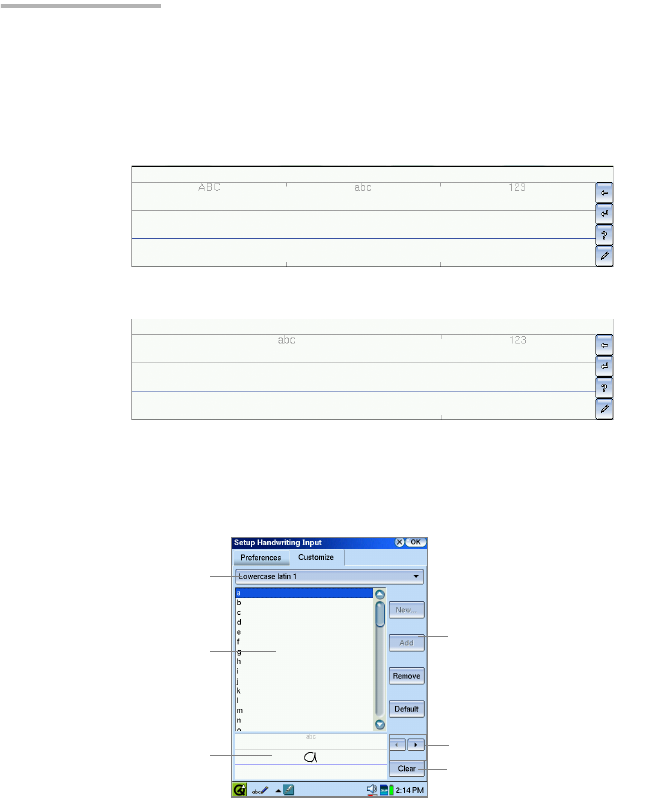
- Setting up your preferences 69
- Customizing your handwriting 70
- Basic Operations 69 71
- Character combobox 71
- Keyboard 72
- Pickboard 73
- Pickboard bottom row 74
- Pickboard menu 74
- Entering characters 75
- Adjusting the Volume 76
- Checking the battery level 77
- Using memory expansion 78
- Removing 79
- Using Help 80
- Registering bookmarks 81
- Removing bookmarks 81
- How to Install Applications 82
- 5. Tap 85
- 7. Tap 85
- Appendix 86
- 2. Performing a Reset 87
- 3. Performing an Error check 88
- Maintaining Your System 89
- Performing an Error check 90
- Format the Zaurus 91
- Replacing the Battery 92
- Conditions of Use 93
- Environment 94
- Precautions 95
- Other precautions 96
- Troubleshooting 97
- 96 Appendix 98
- Appendix 97 99
- 98 Appendix 100
- Specifications 101
- 100 Appendix 102
- Product Support 103
- In Europe: 104
- In the U.S.A 105
- SHARP CORPORATION 107
Manuais e produtos relacionados com Telemóveis Sharp SL-6000N
 (1 páginas)
(13 páginas)
(162 páginas)
(156 páginas)
(156 páginas)
(132 páginas)
(155 páginas)
(87 páginas)
(448 páginas)
(171 páginas)
(240 páginas)
(1 páginas)
(13 páginas)
(162 páginas)
(156 páginas)
(156 páginas)
(132 páginas)
(155 páginas)
(87 páginas)
(448 páginas)
(171 páginas)
(240 páginas)
© 2020, manymanuals-pt.com. Todos os direitos reservados. | 0.039 s |
 Manymanuals.com
 Manymanuals.de
 Manymanuals.fr
 Manymanuals.it
 Manymanuals.pl
 Manymanuals.cz
 Manymanuals.es
 Manymanuals-pt.com
Comentários a estes Manuais