Sharp VL-Z1H Especificações
Consulte online ou descarregue Especificações para Câmaras de vídeo Sharp VL-Z1H. Sharp VL-Z1H Specifications Manual do Utilizador
- Página / 88
- Índice
- RESOLUÇÃO DE PROBLEMAS
- MARCADORES

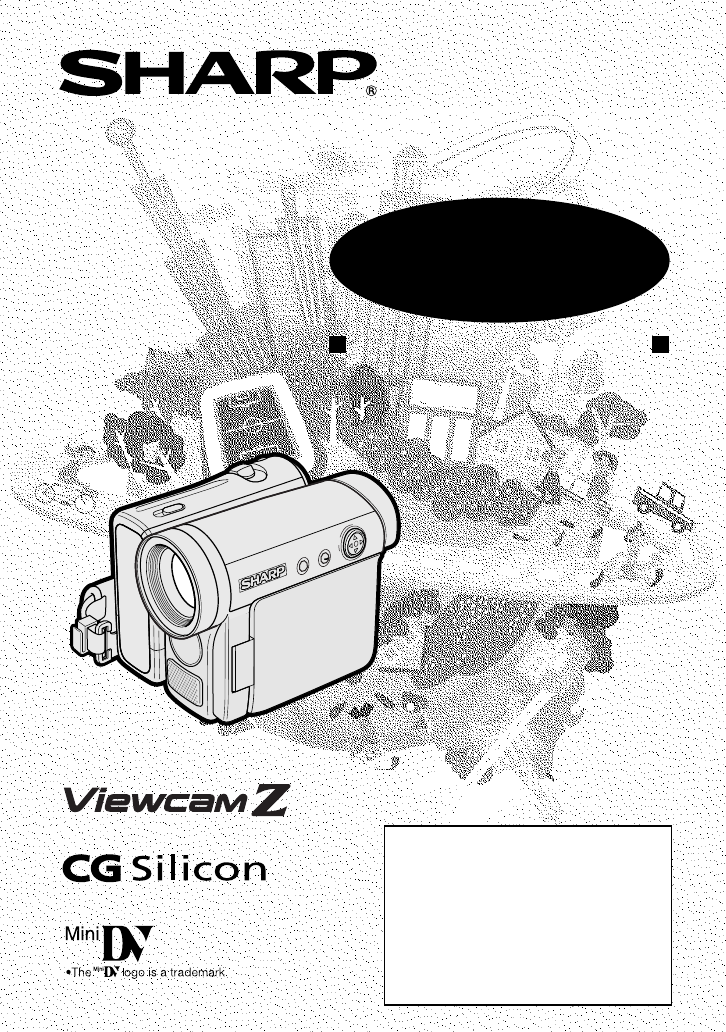
- SHARP CORPORATION 1
- VL-Z1H/hyou2/3; 03/3/31/18:00 2
- Contents 6
- Supplied Accessories 9
- Optional Accessories 9
- Power cord 9
- Precautions 10
- Dew Formation 11
- 4 Remove the cleaning tape 12
- Operation References 13
- Part Names 13
- * When attaching a tripod 14
- Right view 15
- Warning Indicators 16
- Preparation 17
- Removing 18
- 3 Take the battery pack out 18
- Inserting 21
- Installing the Battery to 23
- Remote Control (Not Sup 23
- Changing to the 12-hour 25
- Time Mode 25
- Using the Viewfinder 27
- 2 Hold down the Lock 27
- Detaching the Lens 27
- Using the LCD 29
- 3 Hold down the Lock 29
- Tips on Recording 30
- Positions 30
- Basic Operations 31
- Camera Recording 32
- Power Standby Mode 33
- Turning on/off the 33
- Backlight 33
- Auto Focus 34
- Macro Shots 34
- Remaining Recording 35
- Time Display 35
- Remaining Battery 35
- Power Display 35
- Searching for a Scene Near 37
- Searching for a Scene Far 37
- Playback 38
- Useful Features 39
- DGTL ZOOM 40
- BLC / GA I N ON 42
- A U T OAUTO 42
- 3 0 min3 0min 42
- To cancel DIS function 47
- Self Recording 48
- 2 Set the Power switch to v 48
- 4 Set the Power switch to v 49
- TAPE SPEED 51
- AUD I O MODE 53
- Reverse Playback 55
- Frame Advance 55
- P I C. EFFECT 57
- Advanced Features 59
- LOCK MODE 61
- HITE BAL 61
- Example of use 63
- SCENE MENU 65
- VIDEO AUDIO 67
- (L/MONO) 67
- Editing with the DV 68
- Terminal (IEEE1394) 68
- 12-bit audio recording 69
- 16-bit audio recording 69
- Appendix 72
- BACKL I GHT 73
- Setting the 75
- Camcorder to 75
- Factory Presettings 75
- D EMO MOD E 76
- Useful Information 77
- Battery Pack 79
- Using Your Camcorder 81
- Troubleshooting 82
- Specifications 85
- Camcorder 85
- On-screen Display Index 86
Resumo do Conteúdo
VL-Z1H/hyou; 03/03/28/18:00SHARP CORPORATIONSHARP ELECTRONICS (U.K.) LTD.Sharp House, Thorp Road, Newton HeathManchester M40 5BEPrinted in JapanTINSEA
xPrecautions• Before recording an important scene,please perform the recording test, thenplayback to check if the scene was re-corded properly. If noi
xiDew Formation• What is “dew formation”?When cold water is poured into a glass,dew drops form on the glass. This clingingof water drops is called dew
xiiDirty Video HeadsWhen the video heads have becomeclogged with dirt (dust and tape coatingparticles),• mosaic-like noise appears on theplayback pict
Operation References1Operation ReferencesPart NamesFor details on the use of each part, refer to the page number indicated inparentheses.Front viewZoo
Operation ReferencesOperation References2Lithium battery cover (p. 10)Tripod socket*Left viewDioptre adjustment dial (p. 16)Battery release (pp. 6, 10
Operation References3Viewfinder (pp. 15, 16)Power Zoom Wide angle/Telephoto control (p. 20)/VOLume control (p. 25)Start/Stop button(p. 19)PHOTO button
Operation ReferencesOperation References4Warning IndicatorsIf a warning indicator appears on the screen, follow the specified instructions.Displayed f
Preparation5PreparationAttaching andRemoving the BatteryPackAttaching1 Make sure that the Powerswitch is set to OFF.2 Open the LCD monitor to a 90° an
PreparationPreparation6Removing1 Make sure that the Power switch isset to OFF, then open the LCDmonitor to a 90° angle to thecamcorder body.90˚2 Slide
Preparation7Charging the BatteryPack1Attach the battery pack on thecamcorder, and make sure that thePower switch is set to OFF.2 Open the DC IN jack c
VL-Z1H/hyou2/3; 03/3/31/18:00This equipment complies with the requirements of Directives 89/336/EEC and 73/23/EEC as amended by 93/68/EEC.Dieses Gerät
PreparationPreparation8Powering theCamcorder from anAC OutletYou can also power the camcorder from apower outlet by using the supplied ACadapter.Note:
Preparation9Inserting andRemoving a CassetteInserting1 Attach the power source to thecamcorder, then slide and hold thecassette compartment door relea
PreparationPreparation10Installing the LithiumBatteriesInstalling the Memory BatteryThe supplied CR 1216 type lithium battery isused to store the memo
Preparation11Installing the Battery toRemote Control (Not Sup-plied)The remote control (RRMCGA149WJSA)is not supplied with this camcorder.Contact the
PreparationPreparation124 Press m or l to select “EXECUTE”,then press the centre of the Operationbutton.5 Press the centre of the Operationbutton.6 Pr
Preparation13Changing to the 12-hourTime Mode1 After performing step 10 above, pressl or m to select “12H/24H”, thenpress the centre of the Operationb
PreparationPreparation14Adjusting the HandStrap1 Open the hand strap flap (1) and gripstrap (2).2 Loosen the grip strap, pass your righthand through t
Preparation15Using the ViewfinderYou can record the subject using theelectronic viewfinder. You can also watchplayback through the viewfinder.1 Pull o
PreparationPreparation16Closing the viewfinderPush in the viewfinder completely.Notes:• Do not use excessive force when movingthe viewfinder.• Do not
Preparation17Using the LCDMonitorYou can use the LCD monitor to play backrecordings that you have made or to watchthe subject during recording.1 Open
iiiWARNINGTo prevent fire or shock hazard,do not expose this apparatus todripping or splashing. Noobjects filled with liquids, suchas vases, should be
PreparationPreparation18Tips on RecordingPositionsTurn the LCDmonitor so that thescreen facesupward.Balance yourweight on bothlegs.Turn the LCDmonitor
Basic Operations19Easy CameraRecording in FullAuto Mode• Before you start recording, perform theoperations described on pages 5 through18 to prepare y
Basic Operations20Basic OperationsCamera RecordingPAUSETo pause recordingPress the Start/Stop button again. Record-ing pauses, and the camcorder enter
Basic Operations21Power Standby ModePower Standby mode allows you to preventaccidental recording by locking alloperations except cancelling the mode.H
Basic Operations22Basic OperationsCamera RecordingAuto FocusThe camcorder is preset to Auto Focusmode, which is designed to focus on mosttypes of subj
Basic Operations2330minRemaining RecordingTime DisplayWhen the camcorder is recording, an on-screen indicator displays the approximateremaining tape t
Basic Operations24Basic OperationsCamera RecordingTo stop playbackPress l.To turn the power offSet the Power switch to OFF withoutpressing the Lock bu
Basic Operations25VOLUMEVideo SearchThe video search function makes it easy tosearch for a desired scene on the tape.Searching for a Scene Nearthe Cur
Basic OperationsPlaybackBasic Operations26Watching Playbackon a TVYou can connect the camcorder to a TV toallow a larger audience to enjoy playback.1
Useful Features27Operation buttonDISPLAY buttonPower switchInformationdisplay onMode screenInformationdisplay offExampleExampleUseful FeaturesControl
ivSPECIAL NOTE FOR USERS IN THE U.K.The mains lead of this product is fitted with a non-rewireable (moulded) plugincorporating a 3A fuse. Should the f
Useful FeaturesUseful Features28DISPLAY buttonOperation buttonPower switchExampleExampleExampleUsing the Menu ScreensUse the menu screens to adjust th
Useful Features29Power ZoomcontrolDigital zoom indicatorUseful FeaturesCamera Recording5Press l or m to select “DGTLZOOM”, then press the centre of th
Useful FeaturesCamera RecordingUseful Features30BacklightCompensation (BLC)When the subject is backlit, the image willappear dark if it is recorded no
Useful Features31Gain-upWhen you are recording in a dark or poorlyilluminated location, “LIGHT” is displayedon the screen. Use the gain-up function to
Useful FeaturesCamera RecordingUseful Features32Fade In and Fade OutThe fade function allows you to graduallybring the image and sound in or out at th
Useful Features33Quick ReturnIf while playing back your tape you want toquickly return to the last recorded sceneand start recording again, use the qu
Useful FeaturesCamera RecordingUseful Features34Still RecordingYou can record continuous still images ofsubjects.1 In Recording Standby mode,press the
Useful Features35Digital ImageStabilization (DIS)The digital image stabilization (DIS) functionallows you to stabilize the image byelectronically comp
Useful FeaturesCamera RecordingUseful Features36Self RecordingNormal self recordingOpen the LCD monitor and rotate it 180°vertically so that the scree
Useful Features37Self recording with reversedgripRotate the grip 90° and the LCD monitor180° vertically so that you can recordyourself while holding t
vNOTE:The LCD panel of this camcorder is a very high technology product with morethan 215,000 thin-film transistors*, giving you fine picture detail.
Useful FeaturesCamera RecordingUseful Features38Wide Screen (16:9)The wide screen function lets you recordscenes with the wide-screen feel of a movies
Useful Features39Recording in LP (LongPlay Recording) ModeThis camcorder allows you to record in LP(Long Play Recording) mode for approxi-mately 50% m
Useful FeaturesCamera RecordingUseful Features40WindbreakThe windbreak function allows you toreduce annoying noise from strong windswhen recording.1 I
Useful Features41Selecting the 16-bitAudio RecordingModeThe camcorder normally records audio inthe 12-bit audio recording mode. For higher-quality aud
Useful FeaturesPlaybackUseful Features42Using the RemoteControl(Not supplied)The remote control (RRMCGA149WJSA) isnot supplied with this camcorder. Co
Useful Features43Playback Functionswith the RemoteControl(Not supplied)You can use the following playbackfunctions with the remote control (notsupplie
Useful FeaturesPlaybackUseful Features44Selecting the Dateand Time ofRecording DisplayFollow the procedure below to select thedate, or both the date a
Useful Features45Picture EffectPlaybackThese picture effects let you play backimages with a more dramatic effect.4 Press the DISPLAY button to turn of
Useful FeaturesPlaybackUseful Features46Rotate PlaybackThis function allows you to play backimages rotated 180°.1 In Playback mode, press the DIS-PLAY
Advanced Features47Power Zoom controlOperation buttonDISPLAY buttonManual focus indicatorManual FocusAuto Focus may not be able to focus on thesubject
viPart Names ... 1Warning Indicators ... 4Ope
Advanced FeaturesCamera RecordingAdvanced Features48Displaying the ManualSetting ScreenYou can manually adjust these settings asshown below in the man
Advanced Features49White paper or white clothWhite Balance LockThe colour of the subject on the screenlooks different depending on lightingconditions.
Advanced FeaturesCamera RecordingAdvanced Features50Manual IrisThe camcorder is preset to Auto Iris mode,which automatically selects the optimalapertu
Advanced Features51Manual GainWhen recording in a dark or poorlyilluminated location with Auto Gain mode,the light sensitivity of the camcorder (gain)
Advanced FeaturesCamera RecordingAdvanced Features52Setting theCamcorder to FullAuto ModeYou can set all manual settings, includingwhite balance, iris
Advanced Features53Scene setting indicatorScene Menu(Program AE)You can set the camcorder to a shootingmode that will create the best results for aspe
Advanced FeaturesPlaybackAdvanced Features54Using the Time CodeThe time code shows the hour, minute andsecond of recording, and the frame number(1 fra
Advanced Features55EditingVideo editing lets you refine your videos byremoving unwanted sequences from yourtape, or transposing one sequence withanoth
Advanced FeaturesPlaybackAdvanced Features56Editing with the DVTerminal (IEEE1394)This camcorder enables you to performdigital video editing. A DV cab
Advanced Features57Audio DubbingFeatureYou can add narration to recordings madewith this camcorder, while preserving theoriginal audio and video recor
viiUseful FeaturesControl Buttons ... 27Using the Mode Screens ...
Advanced FeaturesPlaybackAdvanced Features58Audio Dubbing1 Play back the Mini DV cassetterecorded in SP mode and locate thetape position where you wis
Advanced Features59Selecting the AudioPlayback ModeYou can select any of the following audioplayback modes.Audio 1H2• 12-bit recording in mono (Audio
AppendixAppendix60DarkerBrighterDecreaseDarkerIncreaseBrighter–+–+–+LCD BRI GHTLCD COLOURVF BRIGHT6 Press j or k to adjust the item tothe desired sett
Appendix61Adjusting the Backlight1 Press the DISPLAY button until themode screen appears.2 Press l or m on the Operationbutton to select “MENU”, then
AppendixAppendix62Turning off theConfirmation SoundA confirmation sound is made when youturn on or off the Power switch, press theStart/Stop button, o
Appendix63Setting theCamcorder toFactory PresettingsYou can set the camcorder to the factorypresettings in one operation.• The example screens shown a
AppendixAppendix64Demonstration ModeYou can watch a brief demonstration of thespecial camcorder features in Demo mode.If the demonstration appears on
Appendix65Position thesubject in thecentre.Focus manually whenyou need to positionthe subject off centre(see page 47).Useful InformationHints for Bett
AppendixAppendix66Mini DV CassettePrecautions when using a Mini DVcassette• Be sure to use only Mini DV cassettes withthe i mark.• This camcorder can
Appendix67Battery PackThis camcorder uses a lithium-ion typebattery pack.Charging• Charge the battery pack immediately (or aday) before use. The batte
viiiAdvanced FeaturesPlaybackUsing the Time Code ... 54Editing ...
AppendixAppendix68Window cleaning coverAC Adapter• The AC adapter may interfere withreception if used near a radio.• Prevent flammables, liquids, and
Appendix69Using Your CamcorderAbroadTelevision signal standards and electricalvoltages and frequencies vary substantiallyfrom country to country. When
AppendixAppendix70TroubleshootingThe following conditions do not always denote trouble. Therefore, perform the checks describedbelow before calling fo
Appendix71SymptomNo image appearson connected TVscreen.Cannot rewind or fastforward tape.Video noise in image.No sound.Tape does not work.Motion image
AppendixAppendix72SymptomViewfinder picture ishard to see.Monitor picture ishard to see.POWER/CHARGE(RED) indicatorflashes in red whencharging battery
Appendix73SpecificationsCamcorderSignal System: PAL standardRecording System: 2 rotary heads, helical scanning systemCassette: Digital VCR Mini DV vid
AppendixAppendix74On-screen Display IndexA U T OAUTO3 0 minAUTOA U T OAUTO3 0 minAUTOSELECTSETBLC GA IN/OFFFADEMENUSC ENEMENUFADEMENUSC ENEMENUMANUAL
VL-Z1H/hyou2/3; 03/3/31/18:00This equipment complies with the requirements of Directives 89/336/EEC and 73/23/EEC as amended by 93/68/EEC.Dieses Gerät
VL-Z1H/hyou; 03/03/28/18:00SHARP CORPORATIONSHARP ELECTRONICS (U.K.) LTD.Sharp House, Thorp Road, Newton HeathManchester M40 5BEPrinted in JapanTINSEA
ixSupplied AccessoriesBattery packBT-L226Audio/video/S-videocableCR1216 typelithium batteryLens capOptional AccessoriesAC adapterPower cordStandard-li
Manuais e produtos relacionados com Câmaras de vídeo Sharp VL-Z1H
 (77 páginas)
 (206 páginas)

 (112 páginas)
 (129 páginas)

 (129 páginas)
(72 páginas)
(28 páginas)
(80 páginas)
(41 páginas)
(140 páginas)
(40 páginas)
(29 páginas)
(87 páginas)
(96 páginas)
(53 páginas)
(12 páginas)
(97 páginas)
(129 páginas)
(72 páginas)
(28 páginas)
(80 páginas)
(41 páginas)
(140 páginas)
(40 páginas)
(29 páginas)
(87 páginas)
(96 páginas)
(53 páginas)
(12 páginas)
(97 páginas)
 (113 páginas)
(74 páginas)
(113 páginas)
(74 páginas)
© 2020, manymanuals-pt.com. Todos os direitos reservados. | 0.024 s |
 Manymanuals.com
 Manymanuals.de
 Manymanuals.fr
 Manymanuals.it
 Manymanuals.pl
 Manymanuals.cz
 Manymanuals.es
 Manymanuals-pt.com
Comentários a estes Manuais