Sharp UX-465L Especificações
Consulte online ou descarregue Especificações para Máquinas de fax Sharp UX-465L. Sharp UX-465L Specifications Manual do Utilizador
- Página / 136
- Índice
- MARCADORES

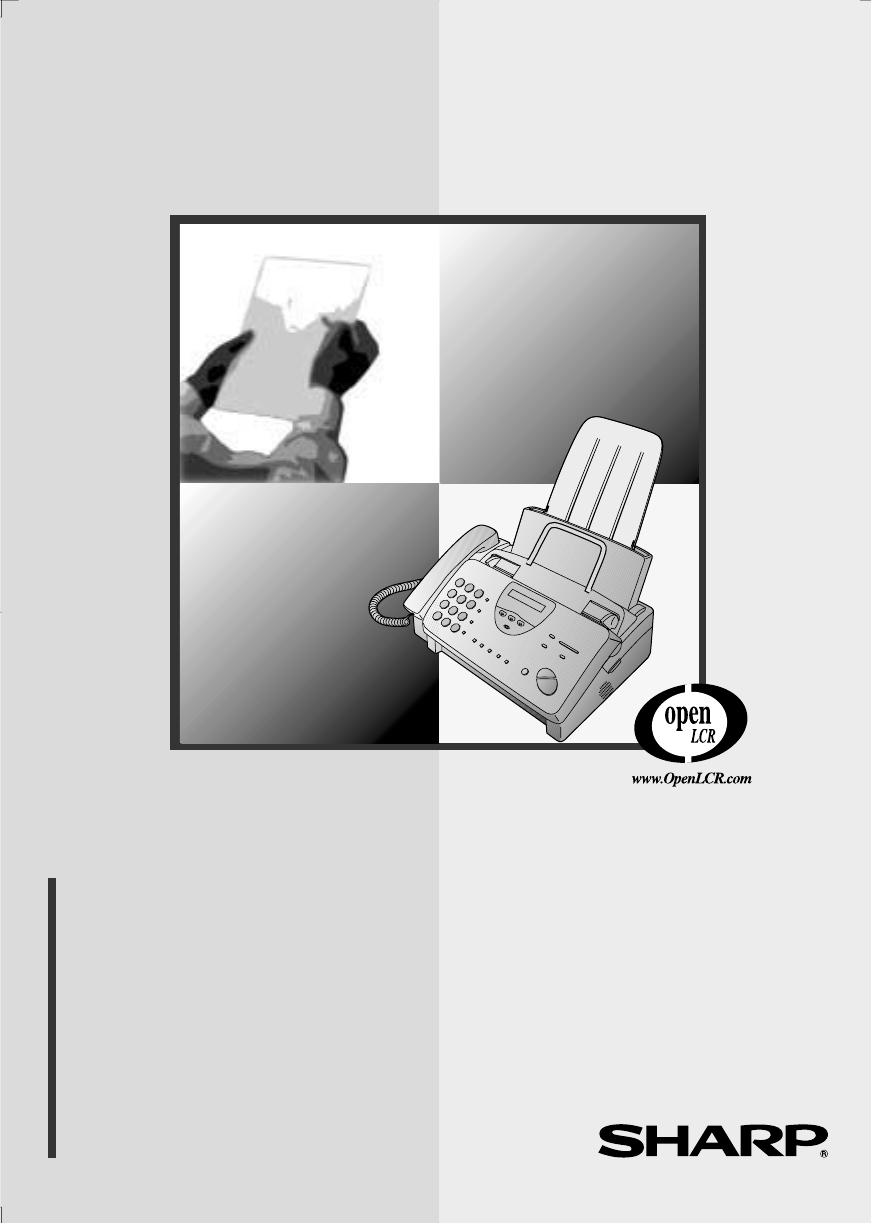
- FACSIMILE 1
- Introduction 3
- Important safety information 5
- Table of Contents 7
- A Look at the Operation Panel 9
- 1. Installation 11
- Connecting the power cord 12
- Connecting the Handset 12
- Connecting the telephone 13
- Attaching the tray extension 14
- Extension phone (optional) 14
- Loading the Imaging Film 15
- When to replace the imaging 18
- Loading Printing Paper 19
- PRINT CONTRAST 21
- PAPER SIZE SET 21
- OWN NUMBER SET 22
- ENTER FAX # 22
- 1. Installation 23
- Setting the Date and Time 24
- Setting the reception mode 26
- Volume Adjustment 27
- 2. Setting Up 29
- Downloading 31
- Setting Up and Using OpenLCR 33
- What to do if you cannot 35
- Recording an Outgoing Message 39
- To listen to the outgoing 40
- Activating the answering 41
- Listening to received 41
- Erasing received messages 42
- Using the REC/MEMO key 42
- Remote Operations 44
- Transfer Function 47
- Recording an 48
- Outgoing Message 48
- Override Ringing 49
- Other remote operations 52
- Other remote 53
- Changing the fax reception 54
- OGM only mode 56
- Recording a new transfer 56
- Recording a "Memo" 56
- Size and weight 57
- Other restrictions 57
- READY TO SEND 58
- Removing a document from 59
- Contrast settings 60
- Resolution settings 60
- Using the REDIAL key 63
- Chain Dialing 66
- Making changes 67
- Rapid Key Dialing 68
- Speed Dialing 68
- 5. Receiving Documents 73
- Using TEL Mode 75
- 6. Making Copies 81
- 7. Making Telephone Calls 83
- Searching for an auto-dial 84
- 8. Special Functions 85
- How Caller ID operates 86
- Viewing the Caller ID list 86
- Blocking voice calls 88
- RECEPTION 90
- Broadcasting 91
- Cover Sheet 92
- Batch Page Numbering 94
- Sending Documents From Memory 97
- If the memory becomes full 98
- START/MEMORY 100
- FUNCTION 100
- Timer Operations 102
- 9. Printing Lists 104
- Printing Lists 105
- Line Error 105
- Print head 108
- Maintenance 109
- The housing 110
- Scanning glass and rollers 110
- Line error 111
- Connecting the handset 112
- Connecting 112
- Distinctive Ring 113
- Problems and Solutions 114
- General problems 115
- Display messages 116
- Messages and Signals 117
- Audible signals 118
- Clearing Paper Jams 119
- Ordering Parts 122
- FCC Regulatory Information 123
- Quick Reference Guide 124
- Sending Faxes 125
- Receiving Faxes 125
- Recording an Outgoing 125
- Guía de referencia rápida 126
- Introducción de su nombre y 126
- Recepción de mensajes telefax 127
- S H A R P 128
- (Tel. #) 134
- 135
- PRINTED IN THAILAND 136
- (TINSE4176XHTZ) 136
Resumo do Conteúdo
MODELUX-465LOPERATION MANUALFACSIMILE 1. Installation 2. Setting Up and Using OpenLCR 3. Using the Answering Machine 4. Sending Documents
8Panel releaseGrasp this finger hold and pull toward you to open the operation panel.Number keysUse these keys to dial numbers, and enter numbers and
Polling (Requesting a Fax Transmission)98Being polled (polling standby)To let another fax machine poll your fax, press the RECEPTION MODE key to set t
Polling (Requesting a Fax Transmission)998. Special Functions2Press 1 to store a number, or 2 to clear a number.3Storing: Enter a 2-digit number from
Timer Operations100Timer OperationsThe Timer function allows you to set a transmission and/or polling operation to be performed automatically at a tim
Timer Operations1018. Special FunctionsRESOLUTION9Adjust the resolution and/or contrast if desired (skip to the next step if you don't want to ch
1029. Printing ListsYou can print lists showing settings and information entered in the fax machine. You can also print out reports on recent activit
Printing Lists1039. PrintingListsExplanation of headingsSENDER/RECEIVERThe name or fax number of the other machine involved in the transaction. If tha
Printing Lists104If desired, you can set the Activity Report to automatically print out whenever information on 30 operations has accumulated. (A repo
Printing Lists1059. PrintingListsPrint Setup ListThis list shows the current status of the printing settings accessed by pressing the FUNCTION key and
10610. Maintenance2Pull the paper release plate forward and remove the paper.Print headClean the print head frequently to assure optimum printing per
Maintenance10710. MaintenanceCaution!♦Do not use benzene or thinner. Avoid touching the print head with hard objects.♦The print head may be hot if you
91. Installation1. InstallationUnpacking ChecklistIf any are missing, contact your dealer or retailer.Before setting up, make sure you have all of th
Maintenance108If SET PAPER & PRESS START KEY appears in the display, make sure the paper is inserted correctly and then press the START/MEMORY key
10911. Trouble-shooting11. TroubleshootingProblems and SolutionsIf you have any problems with your fax, first refer to the following troubleshooting
Problems and Solutions110Dialing and transmission problemsProblem SolutionNo dial tone when you pick up the handset or press the SPEAKER key.• Make su
Problems and Solutions11111. Trouble-shootingReception and copying problemsProblem SolutionThe fax machine doesn't receive documents automaticall
Problems and Solutions112A received document or copy prints out in strips.• Make sure the operation panel and the printer compartment cover under the
Problems and Solutions11311. Trouble-shootingGeneral problemsProblem SolutionInformation cannot be programmed in the fax.• Make sure the fax is plugge
Messages and Signals114Messages and SignalsDisplay messagesNote: If you have turned on the Caller ID function, see Caller ID in Chapter 8 for display
Messages and Signals11511. Trouble-shootingMEMORY IS FULL The memory is full. This may occur during fax reception if too much data is received before
Messages and Signals116RECALLING This appears if you attempt to send a fax by automatic dialing and the line is busy or the receiving fax machine does
Clearing Paper Jams11711. Trouble-shootingClearing Paper Jams2Remove the document.Clearing a jammed documentIf the original document doesn’t feed prop
Connections10ConnectionsMake sure the handset cord goes into the jack marked with a handset symbol on the side of the machine!Use the handset to make
Clearing Paper Jams1183Gently pull the jammed paper out of the machine, making sure no torn pieces of paper remain in the print compartment or rollers
Clearing Paper Jams11911. Trouble-shooting5Pull the paper release plate toward you, reinsert the paper in the paper tray, and then push the paper rele
Ordering Parts120Ordering PartsTo order parts, contact the parts distribution center located nearest you. When ordering a part, use the part order num
FCC Regulatory Information121FCC Regulatory InformationThis equipment complies with FCC rules, Part 68. On this equipment is a label that contains, am
122Quick Reference GuideEntering Your Name and Number1. Press:Display shows:2. Press:3. Enter your fax number (max. of 20 digits) by pressing the numb
Quick Reference Guide123Sending FaxesPlace your document (up to 10 pages) face down in the document feeder.Normal Dialing 1. Lift the handset or press
124Guía de referencia rápidaIntroducción de su nombre y número1. Pulse:El visor muestra:2. Pulse:3. Introduzca su número de telefax (20 dígitos como m
Guía de referencia rápida125Transmisión de mensajes telefaxColoque el original (hasta 10 páginas) cara abajo en el alimentador de documentos.Marcación
126Please check the bottom righthand corner of the product number UX-3CR on the film box, or the final digit of the manufacturing number on the label
127S H A R PMATERIAL SAFETY DATA SHEET (2/2)MSDS No. B-1021Se c t ion 6 . Ph y sic a l C h e mi c a l C h a ra c ter i s ti c s
Connections111. InstallationConnecting the telephone line cordInsert one end of the line cord into the jack on the back of the machine marked TEL. LIN
128S H A R PDate Revised: .Date Issued :Dec. 22, 1998MATERIAL SAFETY DATA SHEET (1/2)MSDS No. B-1006S ec t i o n 1 . P r o du
129S H A R PDate Revised: .Date Issued : Dec. 22, 1998MATERIAL SAFETY DATA SHEET (2/2)MSDS No. B-1006Se c t ion 6 . Phy
130AActivity Report, 102Auto print-out, 104Anti Junk Fax, 93 - 94Anti Junk Number List, 104Audible signals, 116Auto-dial numbers, storing, 63BBatch pa
Index131MessagesChecking date and time, 41Erasing, 40Listening to, 39Listening to remotely, 50Setting allowed time, 42NNormal Dialing, 60, 81Number of
1. Call your fax from a touch-tone telephone, and press # when the outgoing message begins. 2. Enter your remote code: . 3. Pres
LIMITED WARRANTY SHARP ELECTRONICS CORPORATION warrants to the first end user purchaser that this Sharpbrand product (the "Product"), when s
PRINTED IN THAILAND(TINSE4176XHTZ)SHARP DOCUMENT NETWORK SYSTEM OF AMERICASharp Plaza, Mahwah, New Jersey 07430-2135SHARP CORPORATION
Connections12Attaching the tray extension and document supportAttach the paper tray extension.♦Pull the paper release plate forward. Insert the paper
Loading the Imaging Film131. InstallationLoading the Imaging FilmYour fax uses a roll of imaging film to create printed text and images. The print hea
Loading the Imaging Film146Remove the new roll of imaging film from its packaging.•Do not yet remove the band that holds the rolls together.7Insert th
Loading the Imaging Film151. Installation11Rotate the large gear toward you until the film is taut. 12Close the print compartment cover (press down on
Loading the Imaging Film16When to replace the imaging filmReplace the imaging film when the display shows:Use the following imaging film, which is ava
Loading Printing Paper171. InstallationLoading Printing PaperYou can load letter or legal size paper in the paper tray. The maximum number of sheets d
WARNING - FCC Regulations state that any unauthorized changes or modifications to this equipment not expressly approved by the manufacturer could void
Loading Printing Paper185The fax has been set at the factory to scale the size of received faxes to letter size paper. If you have loaded legal paper,
Loading Printing Paper191. Installation6Your fax has been set at the factory to print at normal contrast. Depending on the type of paper you have load
Entering Your Name and Fax Number20Once you enter this information, it will automatically appear at the top of each fax page you send.Entering Your Na
Entering Your Name and Fax Number211. Installation•To insert a space between digits, press the # key.•If you make a mistake, press the SPEED DIAL key
Setting the Date and Time22Setting the Date and Time1Press these keys:Set the date and time by pressing the keys on the operation panel as shown below
Setting the Date and Time231. Installation7Press the * key to select A.M. or the # key to select P.M.Example: 9:254Enter a two-digit number for the da
Setting the Reception Mode24Setting the Reception ModeYour fax has three modes for receiving incoming calls and faxes:RECEPTION MODE keyTEL mode:Selec
Volume Adjustment251. InstallationVolume AdjustmentYou can adjust the volume of the speaker, handset, and ringer using the UP and DOWN keys.Speaker1Pr
Volume Adjustment26RINGER: HIGHRINGER: MIDDLERINGER: LOWRINGER: OFF OK?Ringer1Press the UP or DOWN key. (Make sure the SPEAKER key has not been presse
272. Setting Up OpenLCR2. Setting Up and Using OpenLCRYour fax machine features OpenLCR technology, which helps you save money on long distance and i
1Introduction*Based on ITU-T Test Chart #1 at standard resolution, excluding time for protocol signals (i.e., ITU-T phase C time only).Automatic diali
Setting Up and Using OpenLCR28 1Place the form with the side you wrote on face down, and push it gently into the document feeder of the fax machine.RE
Setting Up and Using OpenLCR292. Setting Up OpenLCR4Follow the instructions you hear.Note: If you are on a pulse dial line, press the * key before pre
Setting Up and Using OpenLCR30Downloading lasts one or two minutes. During this time the display will show:When downloading is completed, the display
Setting Up and Using OpenLCR312. Setting Up OpenLCRDon’t unplug the fax, or the rate data will be lost!Caution!If you unplug the fax machine or an int
Setting Up and Using OpenLCR32 (Blinking)Your fax will automatically call OpenLCR within the next 24 hours to learn when correct rate data will be ava
Setting Up and Using OpenLCR332. Setting Up OpenLCR2Press the OpenLCR key and then the 3 key.3If the display shows the alternating messages at right,
Setting Up and Using OpenLCR34What to do if you cannot connect to OpenLCRIf you are unable to connect to OpenLCR when you use the OpenLCR key to regis
Setting Up and Using OpenLCR352. Setting Up OpenLCRLCR TABLE SELECT1=02MIN, 2=04MINYour fax needs to know whether the call will be long or short to ro
Setting Up and Using OpenLCR362Press the START/MEMORY key.START/MEMORYThe current setting appears here.SHORT TIMEENTER (01-29) 023Enter a 2-digit numb
373. Answering Machine3. Using the Answering MachineThe UX-465L's built-in answering machine allows you to receive both voice messages and fax t
2Halftone (grayscale) 64 levelsDisplay 16-digit LCD displayPaper tray capacity(16- to 20-lb. paper)Letter: 60 sheetsLegal: 30 sheetsCompression scheme
Recording an Outgoing Message38To listen to the outgoing messageTo listen to the outgoing message, follow Steps 1 through 4 of the above procedure to
Operating the Answering Machine393. Answering MachineOperating the Answering MachineFAXTELTADRECEPTION MODEActivating the answering machineActivate th
Operating the Answering Machine40•To move back to the previous message, press the REPEAT key within 3 seconds of the beginning of the current message.
Operating the Answering Machine413. Answering MachineDate and time of ICMsYou can check the date and time of your received messages by pressing the pa
Optional Answering Machine Settings42Optional Answering Machine SettingsSetting ICM timeIncoming messages (ICMs) are the messages which callers leave
Optional Answering Machine Settings433. Answering Machine1Press these keys:ON TAD FAILURE2Press 1 to turn automatic fax reception on, or 2 to turn it
Optional Answering Machine Settings44OGM only modeIf needed, you can turn off recording of incoming messages. In this case, your outgoing message will
Transfer Function453. Answering MachineTransfer FunctionThe Transfer function is used to make the UX-465L automatically call you at a specified number
Transfer Function46Recording the transfer messageThe transfer message plays when you answer the telephone, and informs you that the call is a transfer
Override Ringing473. Answering MachineProgramming the override codeTo override the answering machine, your callers must enter a 3-digit override code
3As a part of our policy of continuous improvement, SHARP reserves the right to make design and specification changes for product improvement without
Override Ringing482The caller should enter the override code and "#" by pressing the appropriate keys on their telephone.(Example)45 5•If an
Remote Operations493. Answering MachineRemote OperationsYou can call the UX-465L from any touch-tone telephone and play back your messages using the r
Remote Operations502Press 1 to turn Toll Saver on, or 2 to turn it off.1 2orYES NO3Press the STOP key.STOPRetrieving your messagesNote: You can also a
Remote Operations513. Answering Machine3While the messages are playing, you can do any of the following:•Repeat: To listen to a message a second time,
Remote Operations52Comments:♦When a remote command is accepted by the machine, you will hear one beep. If an incorrect command is entered, you will he
Remote Operations533. Answering Machine2When you hear a short beep, speak into the telephone to record the new message.•The message can be up to 15 se
Remote Operations543When you are finished, press "0" and "#".0•If the UX-465L detects a certain period of silence, it will stop re
554. SendingDocuments 5.5"(140 mm) 5.8"(148 mm) 8.5"(216 mm) 23.6"(600 mm) 14 lbs. (52 g/m² ) 42 lbs. (157 g/m²
Loading the Document56Loading the DocumentUp to 10 pages can be placed in the feeder at one time. The pages will automatically feed into the machine s
Loading the Document574. SendingDocumentsRemoving a document from the feederImportant!Do not try to remove a document without opening the operation pa
4Never install telephone jacks in wet locations unless the jack is specifically designed for wet locations.Never touch bare telephone wires or termina
Adjusting the Resolution and Contrast58Adjusting the Resolution and ContrastIf desired, you can adjust the resolution and contrast before sending a do
Adjusting the Resolution and Contrast594. SendingDocuments2Press the RESOLUTION key one or more times until the desired resolution and contrast settin
Sending a Fax by Normal Dialing60•Set the resolution and/or contrast if desired.READY TO SENDorSPEAKER1Load the document(s).Sending a Fax by Normal Di
Sending a Fax by Normal Dialing614. SendingDocumentsUsing the REDIAL keyYou can press the REDIAL key to redial the last number dialed. To send a docum
Sending a Fax by Automatic Dialing62Sending a Fax by Automatic DialingYou can dial a fax or telephone number by simply pressing a Rapid Key, or by pre
Sending a Fax by Automatic Dialing634. SendingDocuments4Enter the fax or voice number by pressing the number keys. (Note: A space cannot be entered.)•
Sending a Fax by Automatic Dialing64Chain Dialing for area and access codes You can also store an area code or access code in a Rapid Key or Speed Dia
Sending a Fax by Automatic Dialing654. SendingDocuments4Press the START/MEMORY key.START/MEMORY5Return to Step 3 to clear another number, or press the
Sending a Fax by Automatic Dialing662Press the Rapid Key corresponding to the desired Speed Dial number.Rapid Key DialingIf the number you want to dia
Sending a Fax by Automatic Dialing674. SendingDocuments3Check the display. If the name or number shown is correct, press the START/MEMORY key. (If not
5Table of ContentsIntroduction 1Important safety information. . . . . . . . . . . . . . . . . . . . . . . . . . . . . . . . 3Table of Contents 5A Look
Sending a Fax by Automatic Dialing681Load the document(s).•Set the resolution and/or contrast if desired.2Press the HOLD/SEARCH key and then the 1 key
Sending a Fax by Automatic Dialing694. SendingDocumentsAutomatic redialingIf you use automatic dialing (including Direct Keypad Dialing) and the line
Sending a Fax by Automatic Dialing70Error Correction ModeThe fax machine is set to automatically correct any distortions in a transmission due to nois
715. ReceivingDocumentsWhen the reception mode is set to FAX, the fax machine will automatically answer all calls on four rings and receive incoming f
Using FAX Mode72Changing the number of ringsIf desired, you can change the number of rings on which the fax machine answers incoming calls in FAX mode
Using TEL Mode735. ReceivingDocumentsAnswering with the fax’s handset1When the fax machine rings, pick up the handset.2If you hear a fax tone, wait un
Using TEL Mode74Answering with an extension phone1Answer the extension phone when it rings.2If you hear a soft fax tone, wait until your fax responds
Using TEL Mode755. ReceivingDocumentsTurning off detection of the Tel/Fax Remote NumberIf you don't intend to ever activate fax reception from an
Using TEL Mode762 in 1 PrintTo save paper, you can have the size of your incoming faxes reduced by 55%. This will allow you to receive, for example, a
Using TEL Mode775. ReceivingDocuments•If you selected AUTO, go to Step 3. If you selected 100%, go to Step 4.2Press 1 to turn on automatic reduction,
Table of Contents65. Receiving Documents 71Using FAX Mode. . . . . . . . . . . . . . . . . . . . . . . . . . . . . . . . . . . . . . . . 71Using TEL
Substitute Reception to Memory78Substitute Reception to MemoryIn situations where printing is not possible, such as when your fax runs out of paper, t
796. MakingCopies6. Making CopiesYour fax machine can also be used to make copies. Single and multiple copies (up to 99 per original) can be made, ena
Making Copies804If you are making one copy per original, press the START/MEMORY key. If you are making multiple copies per original, enter the number
817. MakingPhone Calls7. Making Telephone CallsYour fax machine can be used like a regular telephone to make and receive voice calls.♦To make or rece
Making Telephone Calls82Chain DialingAfter lifting the handset, you can dial any combination of Normal Dialing, Rapid Key Dialing and Speed Dialing nu
838. Special Functions8. Special FunctionsCaller ID (Requires Subscription to Service)If you subscribe to a caller identification service from your t
Caller ID84How Caller ID operatesWhen you receive a call, the name and phone number of the caller will alternately appear in the display, beginning ju
Caller ID858. Special Functions2Press the * key to scroll through the list from the most recent call, or the # key to scroll through the list from the
Caller ID863Enter the phone number, including the area code, by pressing the number keys (max. of 20 digits).4Press the START/MEMORY key and then the
Distinctive Ring (Requires Subscription to Service)878. Special FunctionsRING PATTERN 1Two short ringsRING PATTERN 2One short, one long, and one short
7RECEPTION MODE keyPress this key to select the reception mode. An arrow in the display will point to the currently selected reception mode. RESOLUTIO
Distinctive Ring (Requires Subscription to Service)88Important:Distinctive ring will only work in FAX mode. You must set the reception mode of your fa
Broadcasting898. Special FunctionsBroadcastingThis function allows you to send the same document to as many as 20 different locations with just one op
Cover Sheet90Cover SheetYou can have the fax generate a cover sheet and send it as the last page of each of your fax transmissions.Follow the steps be
Cover Sheet918. Special FunctionsSelecting a header message (optional)When the cover sheet function is turned on, you can also select a message which
Batch Page Numbering92Batch Page NumberingYou can change the page numbering of the transmitted document from simple numbering ("P.01", "
Blocking Reception of Unwanted Faxes938. Special FunctionsBlocking Reception of Unwanted FaxesThe Anti Junk Fax function allows you to block reception
Blocking Reception of Unwanted Faxes943Entering: Enter a 1-digit number from 1 to 5 with the numeric keys. This number identifies the fax number that
Sending Documents From Memory958. Special Functions2Press the START/MEMORY key and then 1.Sending Documents From MemoryWith this function, the origina
Sending Documents From Memory96If the memory becomes full...If the memory becomes full while the document is being scanned, MEMORY IS FULL will appear
Polling (Requesting a Fax Transmission)978. Special FunctionsPolling (Requesting a Fax Transmission)Polling allows you to call another fax machine and
Manuais e produtos relacionados com Máquinas de fax Sharp UX-465L
 (156 páginas)
(128 páginas)
(150 páginas)
(104 páginas)
(92 páginas)
(4 páginas)
(138 páginas)
(98 páginas)
(104 páginas)
(119 páginas)
(102 páginas)
(100 páginas)
(11 páginas)
(98 páginas)
(155 páginas)
(166 páginas)
(114 páginas)
(124 páginas)
(156 páginas)
(128 páginas)
(150 páginas)
(104 páginas)
(92 páginas)
(4 páginas)
(138 páginas)
(98 páginas)
(104 páginas)
(119 páginas)
(102 páginas)
(100 páginas)
(11 páginas)
(98 páginas)
(155 páginas)
(166 páginas)
(114 páginas)
(124 páginas)
© 2020, manymanuals-pt.com. Todos os direitos reservados. | 0.049 s |
 Manymanuals.com
 Manymanuals.de
 Manymanuals.fr
 Manymanuals.it
 Manymanuals.pl
 Manymanuals.cz
 Manymanuals.es
 Manymanuals-pt.com
Comentários a estes Manuais